
Team Management
Roles, Groups, and SSO — Without the Enterprise Tax
Four organization-level roles, group-scoped access for per-team visibility, and SAML SSO with IdP group-to-role mapping. So your support lead can post incident updates without editing monitors, a contractor only sees the group they own, and onboarding doesn’t need a second ticket.
No credit card. No per-seat pricing trap.
Four Organization Roles
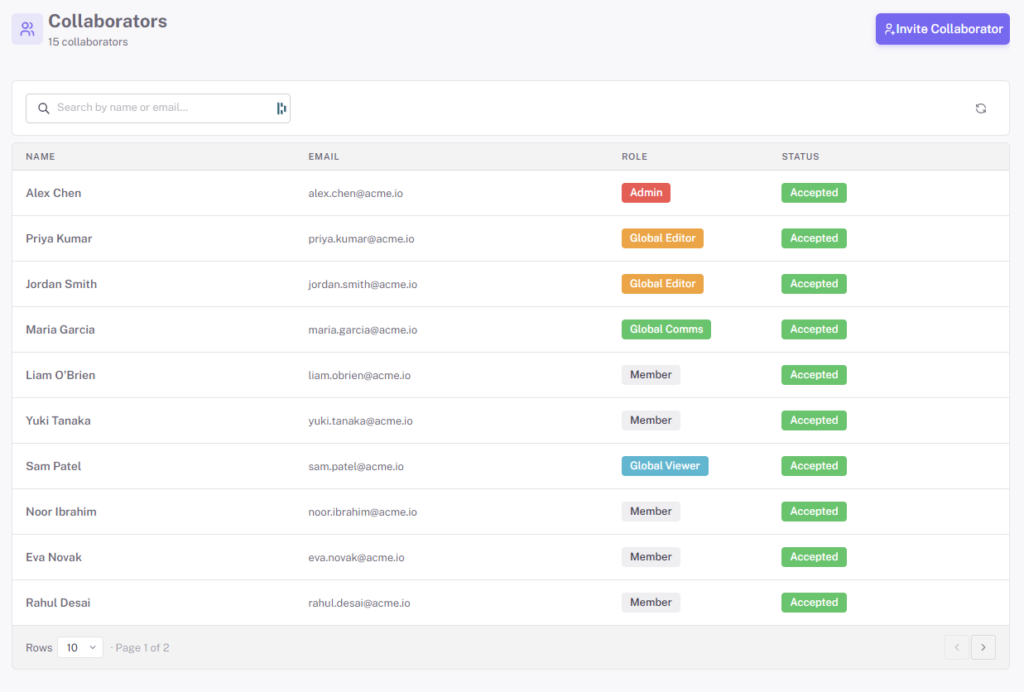
Every collaborator gets one of four organization-level roles. The model is deliberately small — four roles cover almost every real-world permission question, without the “role matrix with 37 checkboxes” problem that enterprise RBAC usually turns into. Role docs →
- Admin — full access to all monitors, status pages, and groups. Manages billing, team members, SAML/SSO, integrations, and API keys
- Global Editor — creates, edits, and deletes monitors in any group; manages status pages, alerts, and incidents. Cannot access billing or team settings
- Global Viewer — read-only across the workspace. Sees every dashboard, report, and incident history without being able to change anything
- Global Communication — views monitors and status pages, and can post incidents and updates across all groups — but cannot edit monitor configurations. Designed for support leads and customer-success roles who run incident comms during an outage
Group-Scoped Access for Members
When somebody shouldn’t see the whole org, make them a Member and scope their access to specific monitor groups. Three per-group permission levels, applied group by group.
View
Read-only access to the group’s monitors, status pages, reports, and alert configurations. Right for stakeholders who need visibility into one product line without write rights on anything.
Editor
Everything View does, plus create, modify, and delete monitors in the group. Edit the group’s status pages and alert rules. For engineers who own a specific service without touching the rest of the estate.
Communication
Everything View does, plus manage incidents and post status updates for that group only. A product-team support lead can run comms on their own outages without seeing the payments team’s monitors.
Members can be assigned to any number of groups with a different permission level per group — View on one, Editor on another, Communication on a third.
SAML SSO With IdP Group Mapping
Connect any SAML 2.0 identity provider — Okta, Microsoft Entra ID, Google Workspace, JumpCloud — and user lifecycle management happens where it should: in your IdP. Deactivate someone in the IdP, their StatusDrift access goes with them. Add them to an IdP group that maps to a StatusDrift role, their role applies automatically on next login.
- Standards-based — any SAML 2.0 IdP; no custom agent or proxy
- Role mapping from IdP groups — new hire joins the “engineers” group in Okta, gets Global Editor on StatusDrift automatically
- Single source of truth — deactivate in IdP, access revokes here. No second offboarding checklist
- Detailed setup guides — Okta, Microsoft Entra ID / Azure AD, and generic SAML docs. SSO integration guide →
Why SSO matters for an on-call tool
Incident response has strict compliance requirements at most companies — who had access, when, and to what. SAML SSO makes those questions answerable from one place. When an auditor asks “who could modify production monitors last quarter?”, you show them the IdP group, not a spreadsheet of StatusDrift usernames.
Also available: two-factor authentication for individual accounts, a security activity log recording logins and significant changes. 2FA docs →
Common Scenarios
Where the four-role model + group-scoped members actually lands in practice. Team workflow docs →
Support lead running comms
Give them the Global Communication role. They post incident updates across all products, see the monitors, but can’t change any configuration — so the responder keeps fixing the incident and comms stays human.
Contractor on one project
Make them a Member with Editor rights on the “customer-portal” group. They own the monitors for their project; the rest of the estate is invisible to them.
Exec who just wants visibility
Give them Global Viewer. They see everything; they can’t break anything. They don’t need training before their first login.
Agency with multiple clients
One group per client. The agency lead is Admin, per-client engineers are Members scoped to their own group. Clients never see each other’s monitors.
Staging vs. production split
One group for staging, one for production. Global Editors handle both; Members with Editor on staging and View on production can experiment safely without risk to the production config.
Service-desk team
Give the service-desk group Communication on every monitor group. They can post updates during incidents without touching alerts or monitor configs.
Questions Teams Usually Ask
How do I invite someone?
Open the Collaborators menu, click Invite Collaborator, pick their organization role and (for Members) their per-group permissions, then send the invite email. They sign up and their role applies on first login.
Can I change someone’s permissions later?
Yes — from the Collaborators page. Change their organization role or adjust their per-group permissions without reinviting. Changes apply immediately.
Is there a limit on collaborators?
Limits depend on your plan. See pricing for the specifics. StatusDrift’s philosophy is that most read-only viewers shouldn’t be a pricing gate — plans are structured so “give the exec team Global Viewer access” is a reasonable thing to do.
Which IdPs work with SAML SSO?
Any SAML 2.0 provider. We have step-by-step guides for Okta and Microsoft Entra ID / Azure AD; Google Workspace, JumpCloud, OneLogin, and others all work via the generic SAML integration guide.
Can IdP groups map to StatusDrift roles automatically?
Yes. Map an IdP group (say, engineering-senior) to the Global Editor role, and anyone in that IdP group lands with Editor access on their next SSO login. Move them to a different IdP group, their StatusDrift role moves with them.
What does offboarding look like?
With SSO, deactivating the user in your IdP revokes StatusDrift access automatically — no separate offboarding step for the monitoring tool. Without SSO, remove them from the Collaborators page the same way you invited them.
Pairs Well With
On-Call Scheduling
Schedules and policies live next to roles — the same group structure scopes monitors, schedules, and who can modify them.
Incident Management
Global Communication role exists specifically for the people who run incident comms without editing monitors.
Status Pages
Give service-desk and support staff posting rights on status pages without edit access on the underlying monitors — separation of duties that matches how real teams work.
Access Control Without the Complexity
Four roles that cover real-world needs, group-scoped access, SAML SSO with role mapping. Invite your team and start.