
This guide walks you through setting up SAML-based Single Sign-On (SSO) between Google Workspace (formerly G Suite) and StatusDrift. Once configured, your team members can sign in to StatusDrift using their Google Workspace credentials.
Prerequisites
Before you begin, ensure you have:
- Google Workspace Super Admin access
- StatusDrift Organization Owner or Admin role
- A StatusDrift plan that includes SSO (Team or Enterprise)
Step 1: Start SAML Configuration in StatusDrift
1. Sign in to StatusDrift and navigate to Organization Settings > Security > Single Sign-On.
2. Click Configure SSO and select Google Workspace from the identity provider list.
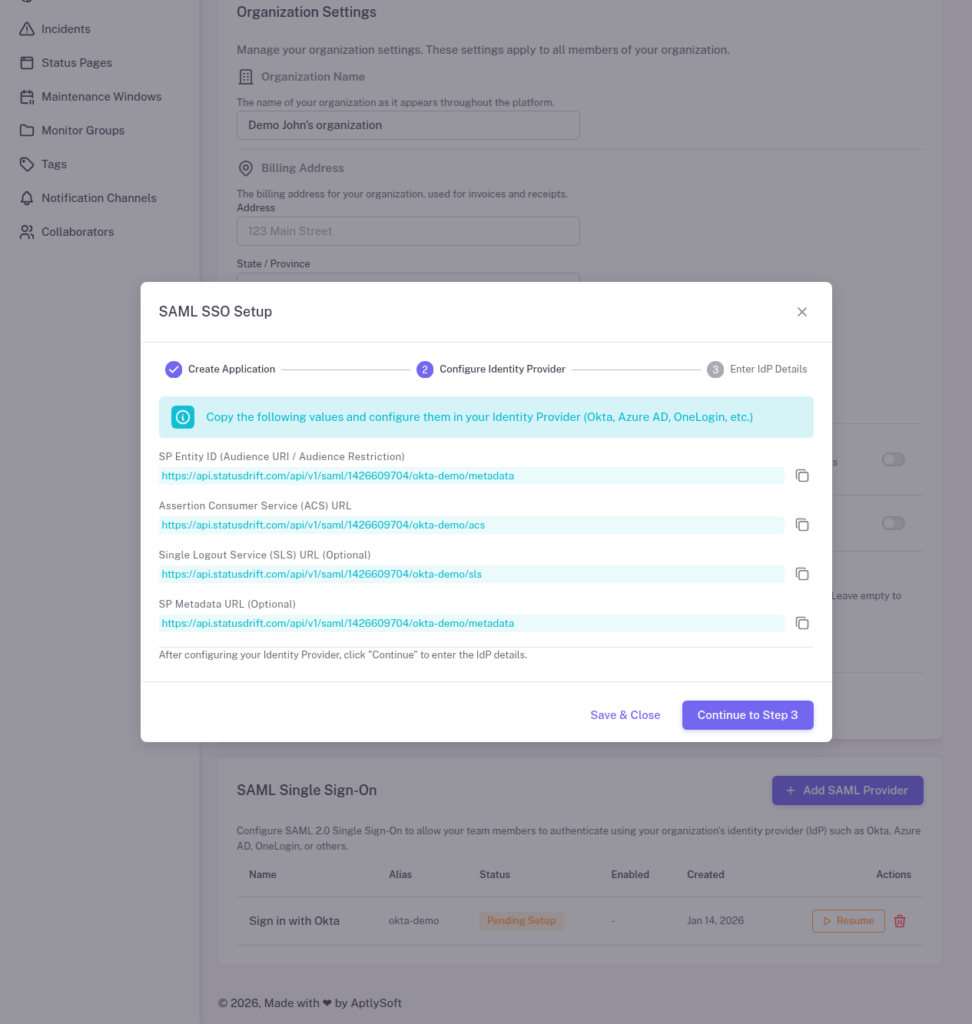
3. StatusDrift will display your Service Provider (SP) metadata. Keep this page open – you will need these values:
- ACS URL – The Assertion Consumer Service URL where Google sends SAML responses
- Entity ID – StatusDrift’s unique identifier for your organization
- Start URL – Optional URL for IdP-initiated login
Step 2: Create a Custom SAML App in Google Admin Console
1. Open the Google Admin Console and sign in with your Super Admin account.
2. Navigate to Apps > Web and mobile apps.
3. Click Add app > Add custom SAML app.
4. Enter an app name (e.g., “StatusDrift”) and optionally upload a logo, then click Continue.
Step 3: Download Google IdP Metadata
On the “Google Identity Provider details” page, you will see:
- SSO URL – Google’s sign-in endpoint
- Entity ID – Google’s unique identifier
- Certificate – The X.509 certificate for verifying SAML assertions
Click Download Metadata to save the XML file, or copy the individual values. You will enter these in StatusDrift later. Click Continue.
Step 4: Configure Service Provider Details
On the “Service provider details” page, enter the values from StatusDrift:
| Google Field | StatusDrift Value |
|---|---|
| ACS URL | Copy from StatusDrift SP metadata |
| Entity ID | Copy from StatusDrift SP metadata |
| Start URL | Leave blank or use StatusDrift login URL |
| Name ID format | |
| Name ID | Basic Information > Primary email |
Check Signed response for enhanced security, then click Continue.
Step 5: Configure Attribute Mapping
Map Google Workspace user attributes to StatusDrift fields. Click Add mapping for each attribute:
| Google Directory Attribute | App Attribute |
|---|---|
| Primary email | |
| First name | firstName |
| Last name | lastName |
Click Finish to create the SAML app.
Step 6: Configure Group Membership (Optional)
To pass Google Groups membership to StatusDrift for automatic role assignment:
1. In your SAML app settings, go to Attribute mapping.
2. Add a group membership attribute:
- Google groups attribute: Select the groups you want to include
- App attribute: groups
Note: Google Workspace only sends group membership for groups explicitly selected in this configuration. Unlike other providers, it does not automatically include all group memberships.
Step 7: Enable User Access
By default, the SAML app is OFF for all users. To enable access:
1. In the SAML app settings, click User access.
2. To enable for everyone, click ON for everyone and save.
3. To enable for specific organizational units or groups:
- Select an organizational unit from the left panel
- Set the service status to ON
- Click Save
Changes may take up to 24 hours to propagate, though they typically apply within minutes.
Step 8: Complete Configuration in StatusDrift
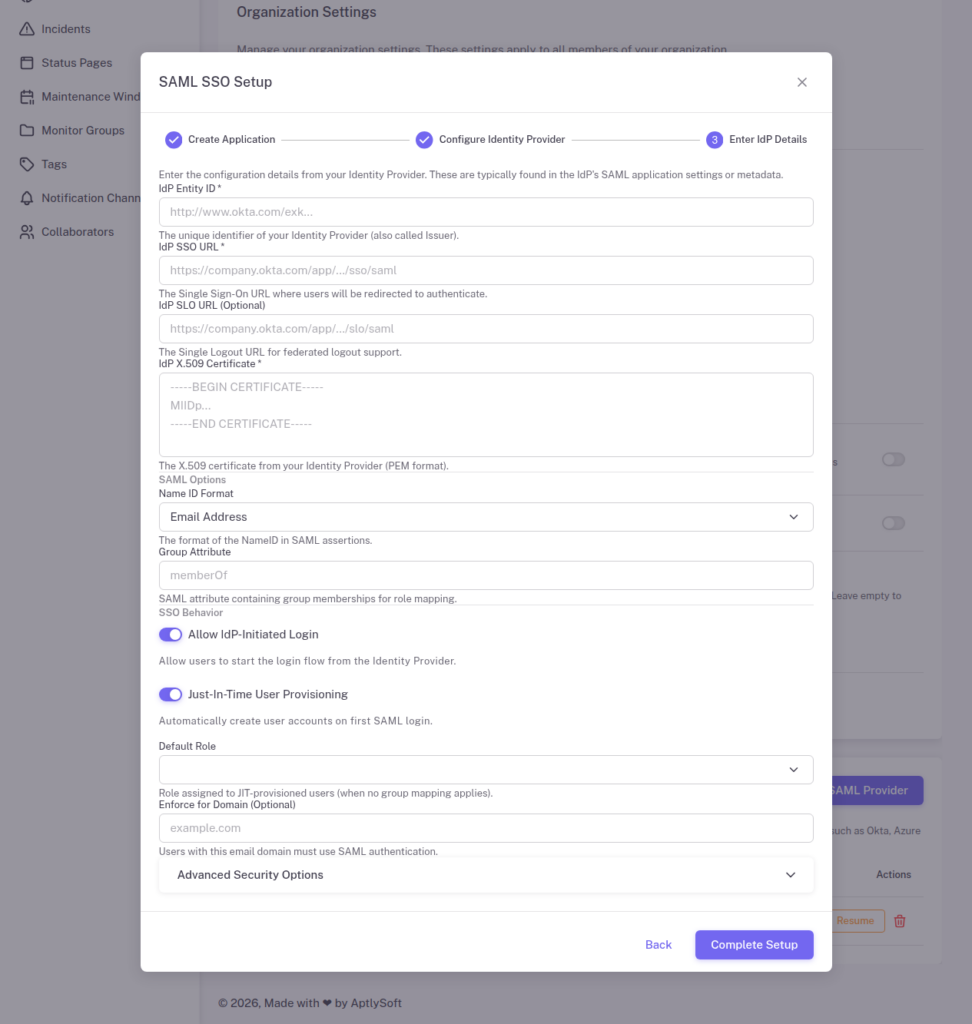
Return to StatusDrift and enter the Google IdP details:
1. Identity Provider Entity ID: The Entity ID from Google’s IdP details page
2. Single Sign-On URL: The SSO URL from Google’s IdP details page
3. X.509 Certificate: Paste the certificate content (including BEGIN and END lines)
4. Configure optional settings:
- Just-In-Time Provisioning – Automatically create StatusDrift accounts for new users
- Require SSO – Force all users to authenticate via Google Workspace
5. Click Save Configuration.
Step 9: Configure Group-to-Role Mapping
If you configured group membership in Step 6, set up role mapping in StatusDrift:
1. Go to Organization Settings > Security > SSO > Role Mapping.
2. Add mappings for your Google Groups:
| Google Group | StatusDrift Role |
|---|---|
| [email protected] | Admin |
| [email protected] | Editor |
| [email protected] | Viewer |
3. Set a default role for users who do not match any group mapping.
Testing Your Configuration
Before enforcing SSO for all users:
1. Open an incognito/private browser window.
2. Navigate to your StatusDrift login page.
3. Click Sign in with SSO or enter your organization’s SSO domain.
4. You should be redirected to Google’s sign-in page.
5. After authenticating, you should be redirected back to StatusDrift and signed in.
Troubleshooting
Error: “app_not_configured_for_user”
The user’s organizational unit does not have access to the SAML app. Check User access settings in the Google Admin Console and ensure the user’s OU has the app enabled.
Error: “Invalid SAML response”
Verify that:
- The ACS URL and Entity ID in Google match StatusDrift exactly
- Name ID format is set to EMAIL
- The certificate in StatusDrift matches the one from Google
Error: “User not found”
If Just-In-Time provisioning is disabled, users must have an existing StatusDrift account with an email matching their Google Workspace primary email. Either enable JIT provisioning or pre-create user accounts.
Groups not syncing
Google Workspace only includes groups that are explicitly configured in the attribute mapping. Ensure you have:
- Added group membership to the attribute mapping
- Selected the specific groups to include
- Used “groups” as the app attribute name
Security Best Practices
- Enable Signed Response – Always check “Signed response” in Google’s service provider settings
- Use Organizational Units – Limit SAML app access to specific OUs rather than enabling for the entire domain
- Enable 2-Step Verification – Require 2FA for Google Workspace accounts to add an extra layer of security
- Monitor Sign-in Activity – Use Google Admin Console’s security reports to monitor authentication events
- Regular Certificate Rotation – Google automatically manages certificate rotation, but verify StatusDrift is updated if you manually replace certificates