
SLA policies in StatusDrift define the uptime target you want to hold a service to, the measurement window, and optionally a response time threshold. Once a policy is active, StatusDrift continuously calculates compliance, error budget usage, and burn rate for the monitors it covers.
Choose the right scope
When you create a policy, start with Policy Scope. StatusDrift supports two scopes: Organization-wide and Group-scoped.
- Organization-wide policies are visible across the organization. You can target individual monitors, tags, or groups.
- Group-scoped policies are only visible to members with access to the selected groups. They can cover all monitors in those groups or be narrowed to specific monitors or tags inside those groups.
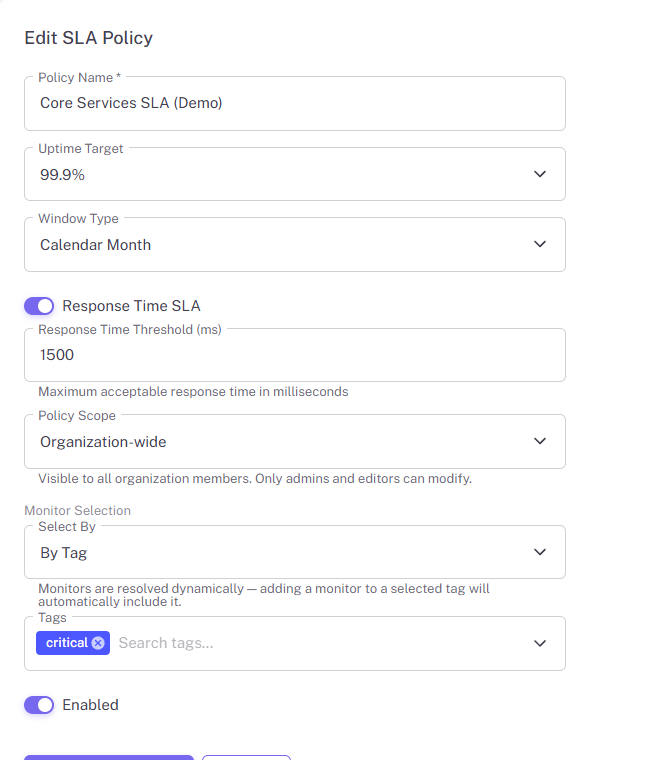
Organization-wide policies are visible across the organization and can target monitors, tags, or groups.
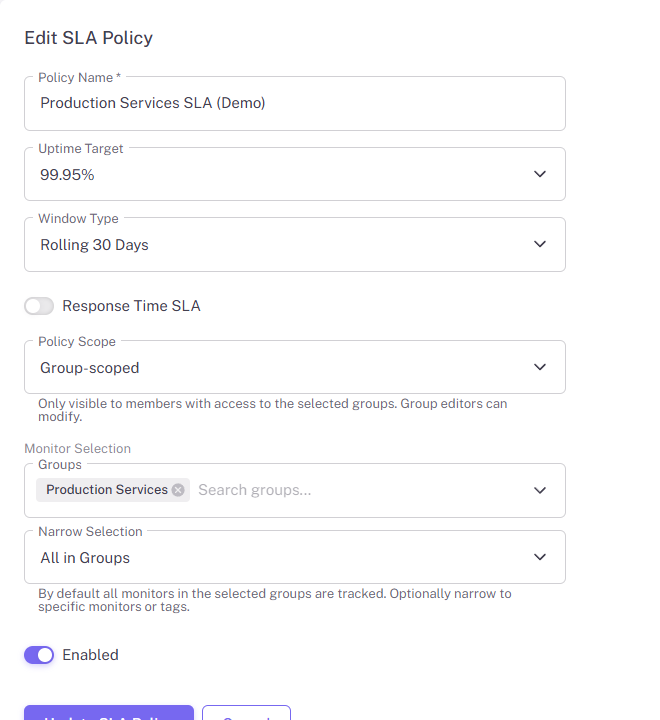
Group-scoped policies are limited to selected groups and can optionally be narrowed further.
Create the SLA policy
After you choose the scope, set the core policy values. The most important fields are Policy Name, Uptime Target, and Window Type. You can also enable an optional Response Time SLA when latency is part of the commitment you want to track.
- Use Uptime Target to define the required availability percentage.
- Use Window Type to define whether compliance is measured over a calendar week, calendar month, rolling 30 days, or calendar year.
- Use Response Time SLA when the policy should also track a maximum acceptable response time.
- Use Enabled to turn the policy on as soon as it is saved.
Review SLA policies from the overview page
Open SLA Policies to review all policies at a glance. This page shows the policy name, scope badge, uptime target, number of tracked monitors, and a compliance bar showing compliant versus breached monitors.
This is the fastest place to compare organization-wide and group-scoped policies, confirm that a policy is active, and spot which policies currently have breaches.
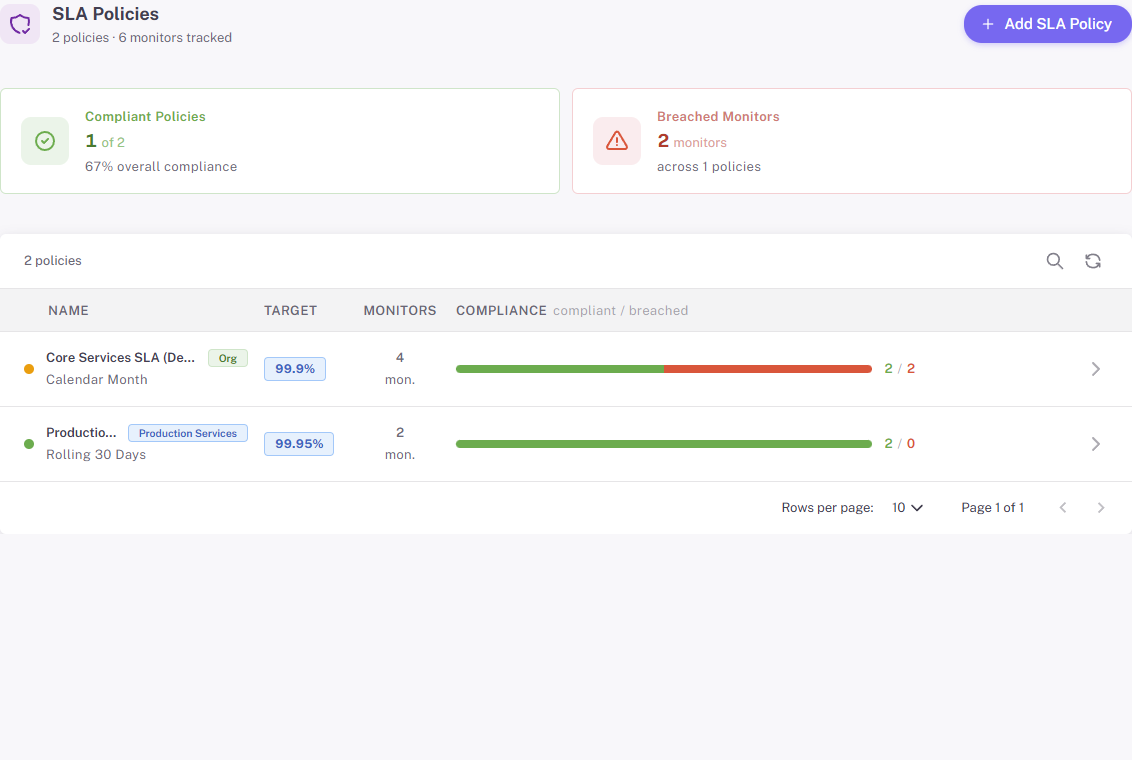
The SLA Policies page gives you a quick review of target, scope, monitor count, and compliance status.
Review a single policy in detail
Open any policy to review its full results. The detail page shows the uptime target, current window, optional response time threshold, and a Monitor Compliance table for each monitored service.
- Use Uptime to compare each monitor against the policy target.
- Use Budget Used to see how much of the current error budget has been consumed.
- Use Burn Rate to understand how quickly the budget is being spent.
- Use Status to identify whether a monitor is compliant, at risk, or breached.
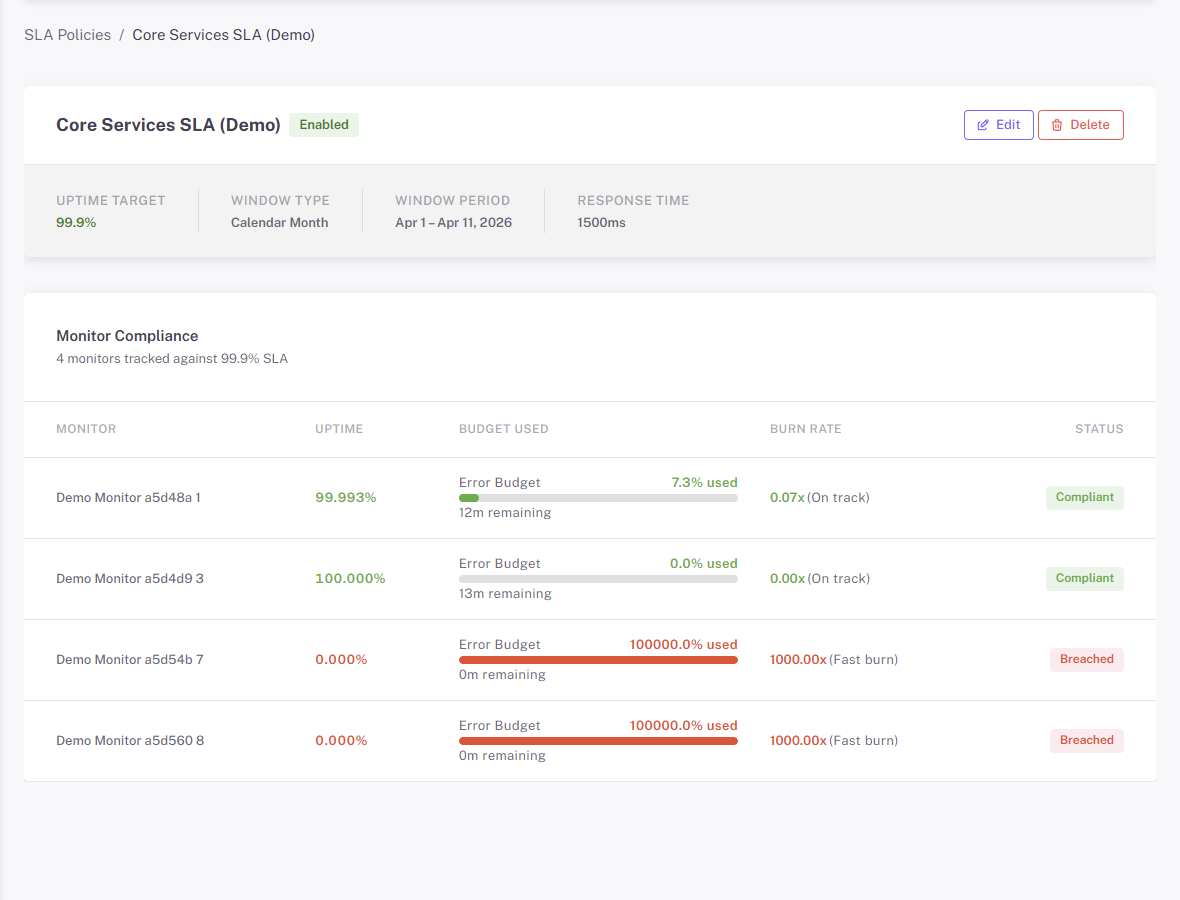
Open a policy to review compliance details, budget usage, burn rate, and status for each monitored service.
Recommended use
- Create an organization-wide policy when the same service level target should be visible and reviewed across the whole organization.
- Create a group-scoped policy when one team owns a specific monitor group and needs its own SLA tracking.
- Review the SLA Policies page for fast health checks, then open the individual policy page when you need monitor-level detail.