
StatusDrift on-call combines schedules, escalation policies, and monitor alerts so incidents reach the right people at the right time. This walkthrough uses the demo account and covers the full flow from schedule creation to monitor attachment.
How on-call is organized
- Schedules define who rotates, the timezone, how often handoff happens, and whether the schedule is organization-wide or tied to a specific monitor group.
- Policies define the escalation path. Each step can target a schedule or a specific responder, with a delay before the next step runs.
- Current shows who is on call right now for each enabled policy.
- Calendar shows upcoming handoffs and coverage for one or more schedules.
- Monitor alerts decide which on-call policy should be paged when a monitor goes down or enters warning state.
Create and manage schedules
Open StatusDrift, then go to On-Call and choose Schedules. Each schedule includes the rotation timezone, frequency, rotation interval, start time, participants, and optional overrides.
Use an organization (global) schedule when the same rotation can be used everywhere. Use a group-scoped schedule when only monitors in a specific monitor group should use that rotation.
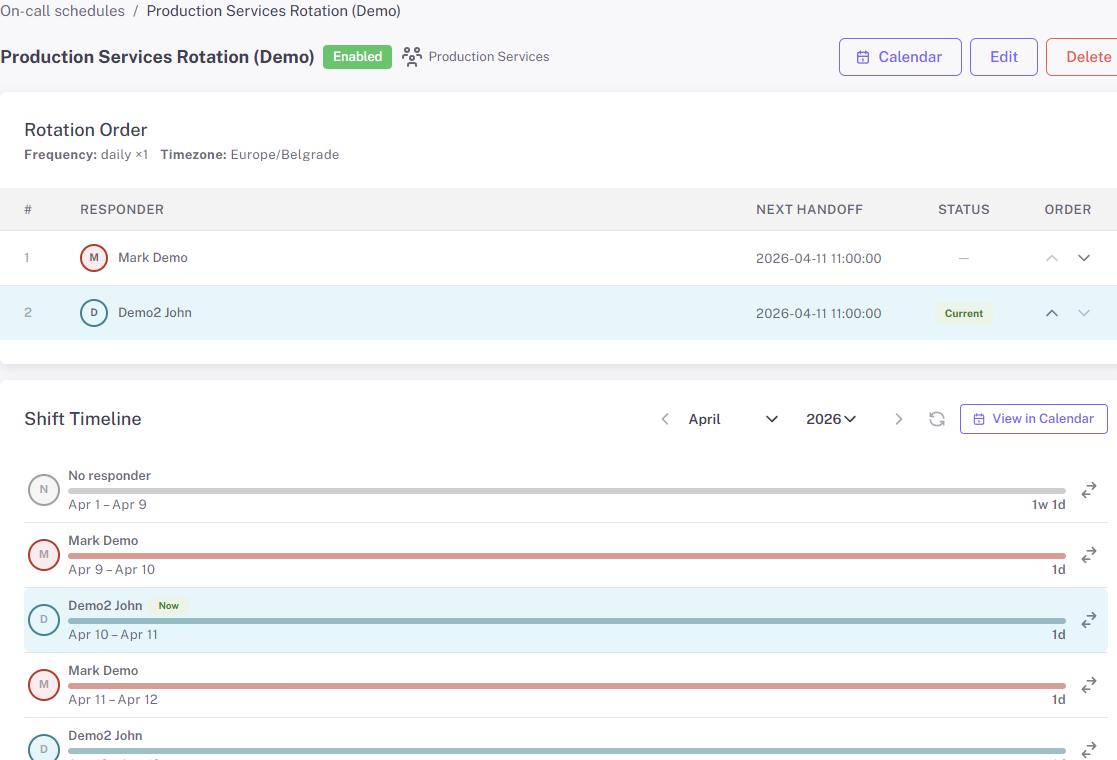
Schedules define who rotates on call, how often handoff happens, and whether the schedule is organization-wide or group-scoped.
Build escalation policies
Go to Policies to define how paging should escalate. The first step is usually a schedule, and later steps can hand off to another schedule or a specific responder if the issue is not acknowledged in time.
Policies can also be organization-wide or group-scoped. The default organization policy is available everywhere. Group-scoped policies are useful when one team owns a specific service area, such as a production group or API group.
- Use the default organization policy for a standard fallback path that any monitor can use.
- Use a group-scoped policy when monitors in one group should follow a different escalation path.
- Add delay minutes between steps to control when the next responder or schedule is paged.
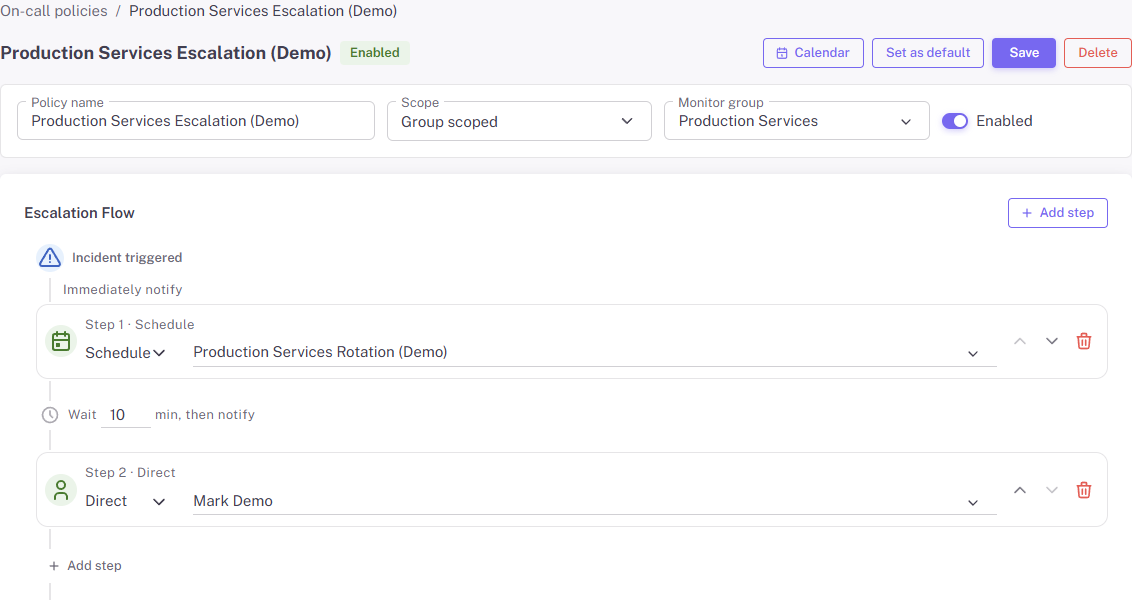
Policies turn schedules and responders into an escalation path.
Check who is on call right now
Open Current to confirm which responder is active for each enabled policy step. This page is useful when an incident starts and you need to confirm who should be responding before or during escalation.
For schedule-based steps, StatusDrift also shows the currently active person from that schedule and the next handoff time when it is available.
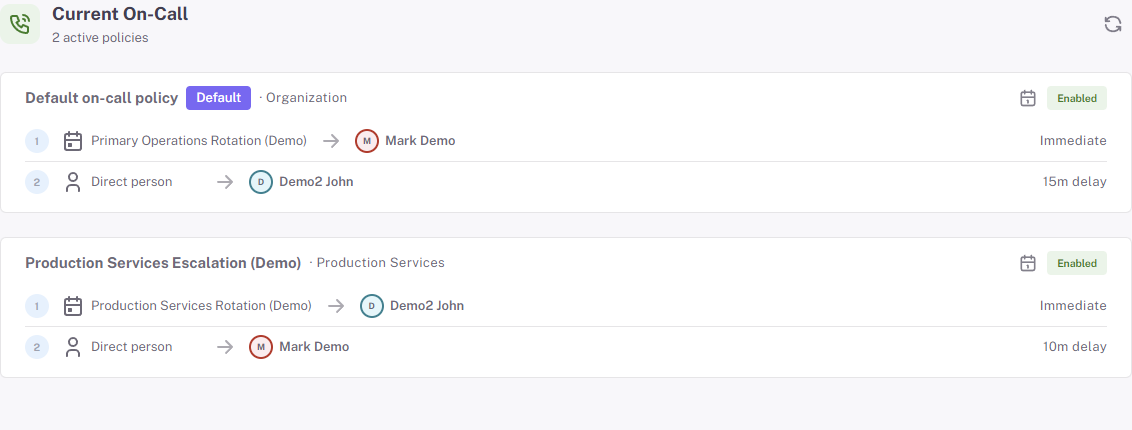
Current On-Call shows who is active right now for each enabled policy and step.
Use the calendar to review coverage
Open Calendar when you want to verify future coverage, review handoffs across the month, or inspect a specific schedule visually. You can start from a policy to load its schedules automatically, or select up to three schedules manually.
This view is especially helpful after editing a rotation or adding an override because you can confirm the handoff pattern immediately.
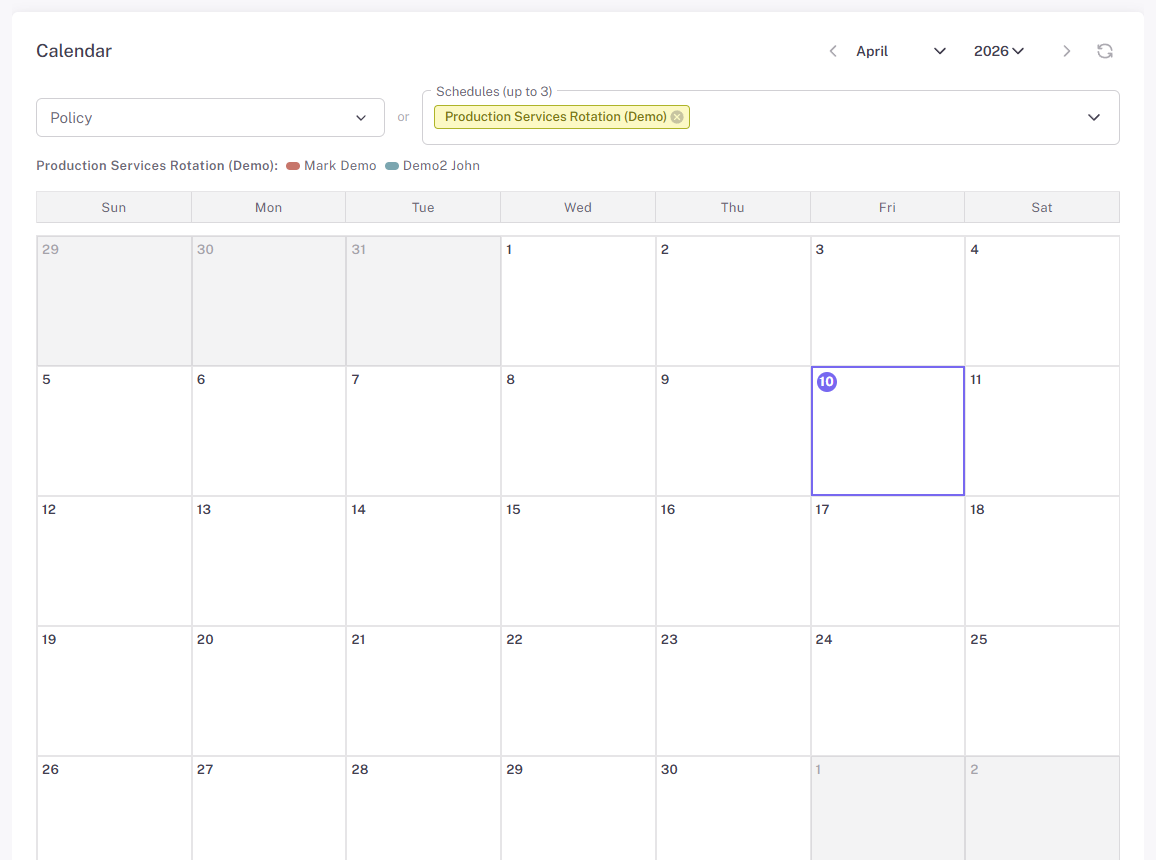
The calendar helps you verify upcoming handoffs and overall coverage.
Attach an on-call policy to a monitor
Open the monitor, go to Alert Configuration, and enable Page on-call policy in the alert you want to use for paging.
- Choose Default (org) to use the organization-wide fallback policy.
- Choose Group when the monitor belongs to a monitor group with its own policy.
- If you leave notification channels empty and enable on-call paging, notifications are sent through the on-call escalation path only.
This is the step that connects monitor failures to your on-call workflow. Once attached, the alert can page the selected policy whenever its conditions are met.
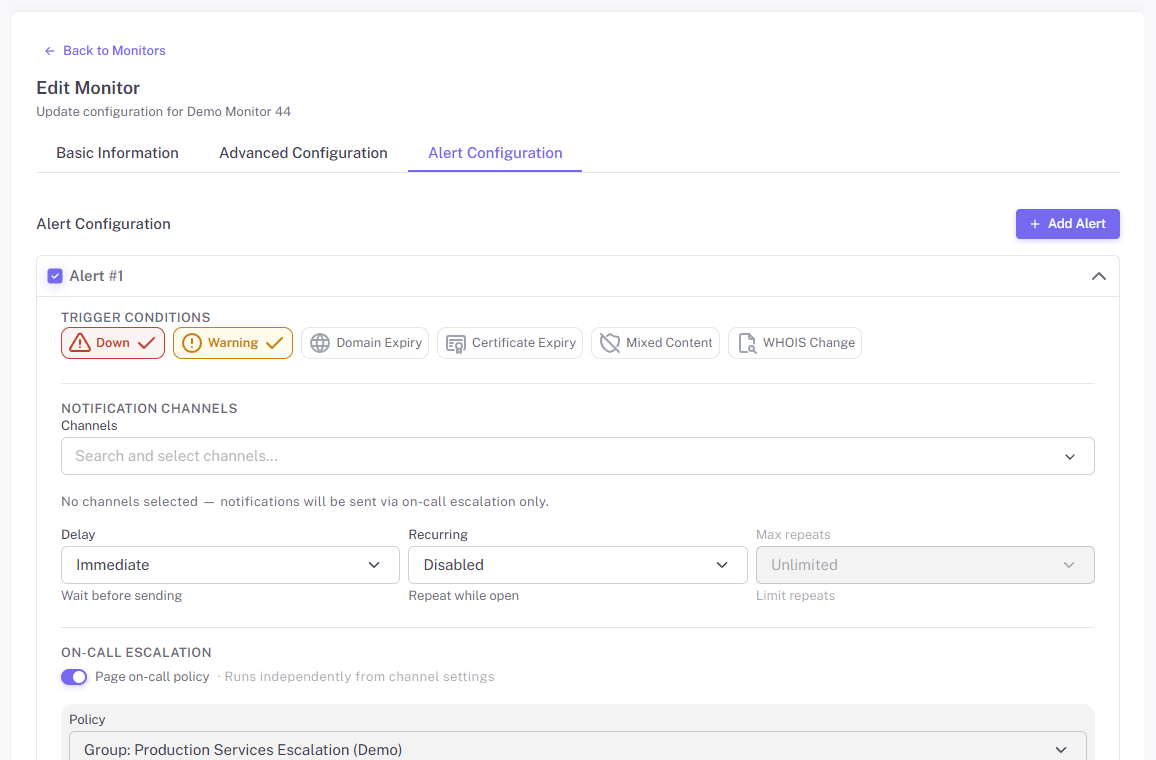
Attach the correct policy in a monitor alert so incidents page the right on-call responders.
Recommended setup pattern
- Create one default organization policy first so every monitor has a safe fallback.
- Add group-scoped schedules and policies only where a team needs its own rotation.
- Use the Current and Calendar pages after changes to confirm the rotation and escalation path behave as expected.