
Push monitors (also called heartbeat monitors) work differently from other monitor types. Instead of StatusDrift checking your service, your service sends periodic requests to StatusDrift. If the expected request does not arrive within the configured interval, StatusDrift alerts you that the heartbeat has stopped.
When to Use Push Monitoring
Push monitoring is designed for scenarios where traditional polling is not possible or practical:
- Cron jobs and scheduled tasks – Verify that backups, reports, or maintenance scripts run on schedule
- Background workers – Monitor queue processors, data pipelines, or batch jobs
- Services behind firewalls – Monitor internal systems that cannot accept incoming connections
- IoT devices – Track devices that periodically phone home
- Database maintenance – Confirm that cleanup scripts and optimization tasks complete
Creating a Push Monitor
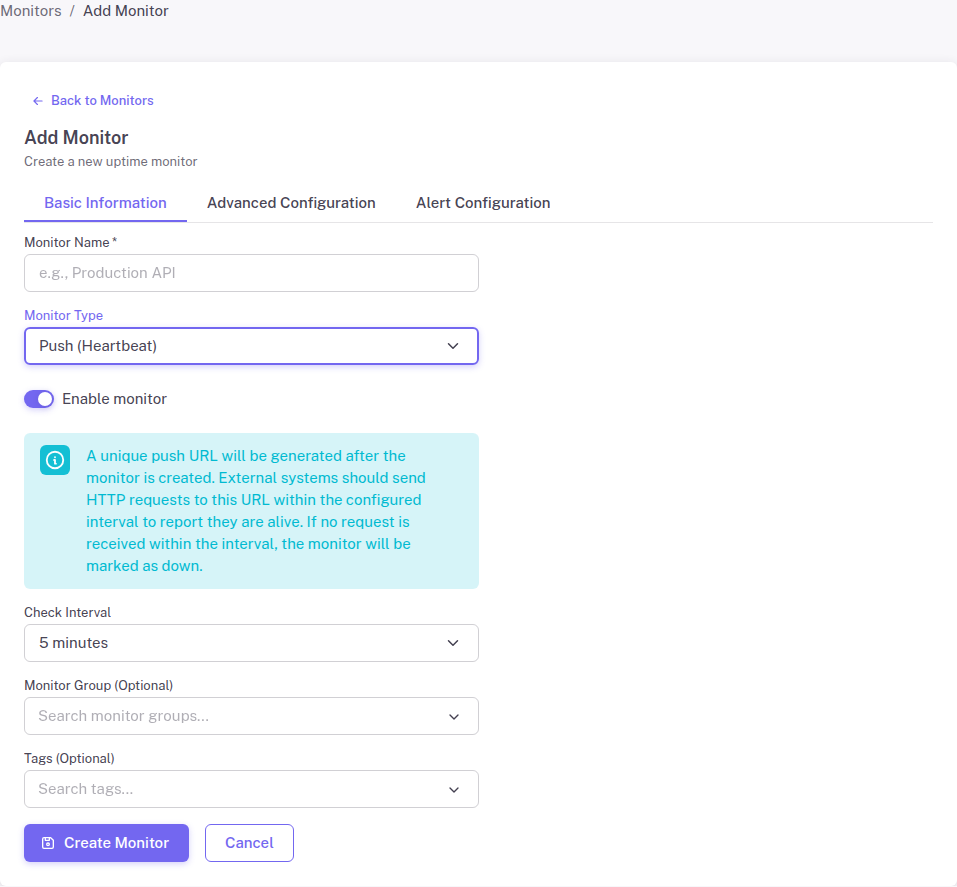
To create a Push monitor, navigate to Add Monitor in your StatusDrift dashboard and select Push (Heartbeat) from the monitor type dropdown.
Configuration Options
Friendly Name – A descriptive name to identify this monitor in your dashboard and alerts. Use a name that clearly indicates what job or service is sending the heartbeat.
Check Interval – The maximum time allowed between heartbeats. If StatusDrift does not receive a request within this interval, the monitor is marked as down. Set this slightly longer than your job’s actual schedule to account for execution time and minor delays.
For example, if your cron job runs every hour, set the check interval to 65 or 70 minutes to allow some buffer.
How Push Monitoring Works
After creating a Push monitor, StatusDrift generates a unique URL for your monitor. The workflow is:
- StatusDrift provides you with a unique push URL
- Your job or service sends an HTTP request to this URL when it completes successfully
- StatusDrift records the timestamp of each received request
- If no request arrives within the configured interval, StatusDrift triggers an alert
The Push URL
Each Push monitor has a unique URL that looks like:
https://api.statusdrift.com/api/v1/monitor/XXX/push/YYYWhere XXX is your monitor ID and YYY is a unique authentication token. You can send either a GET or POST request to this URL. The request body and headers are ignored – only the fact that a request was received matters.
Integration Examples
Bash/Cron
Add a curl command at the end of your cron job:
# Run backup and send heartbeat on success
0 2 * * * /usr/local/bin/backup.sh && curl -s https://api.statusdrift.com/api/v1/monitor/XXX/push/YYY
Python
import requests

def run_scheduled_task():
    # Your task logic here
    process_data()

    # Send heartbeat on completion
    requests.get("https://api.statusdrift.com/api/v1/monitor/XXX/push/YYY")
Node.js
const https = require('https');

async function runScheduledTask() {
    // Your task logic here
    await processData();

    // Send heartbeat on completion
    https.get('https://api.statusdrift.com/api/v1/monitor/XXX/push/YYY');
}
PHP
// Your task logic here
process_data();

// Send heartbeat on completion
file_get_contents('https://api.statusdrift.com/api/v1/monitor/XXX/push/YYY');
Best Practices
Send Heartbeat After Success
Only send the heartbeat request after your job completes successfully. This ensures you are alerted when the job fails, not just when it does not run.
Use Appropriate Intervals
Set the check interval based on how quickly you need to know about failures:
- Critical jobs: Set interval close to the schedule (e.g., hourly job with 70-minute interval)
- Less critical jobs: Allow more buffer to reduce false alarms from slow execution
Handle Network Failures
Consider adding retry logic for the heartbeat request in case of temporary network issues:
# Retry heartbeat up to 3 times
for i in 1 2 3; do
    curl -s https://api.statusdrift.com/api/v1/monitor/XXX/push/YYY && break
    sleep 5
done
Troubleshooting
Monitor Shows Down But Job Ran
- Verify the heartbeat request is sent after the job completes, not before
- Check that outbound HTTPS requests are allowed from your server
- Confirm the push URL is correct (no typos or extra characters)
- Review job logs to ensure the heartbeat curl/request executed
Frequent False Alarms
- Increase the check interval to allow more time for job completion
- Add retry logic for the heartbeat request
- Check if the job sometimes takes longer than expected