
Two-factor authentication (2FA) adds an extra layer of security to your StatusDrift account. In addition to your password, you’ll need a second method of authentication to sign in, making it significantly harder for unauthorized users to access your account.
Why Enable 2FA?
Even if someone obtains your password through phishing, data breaches, or other means, they won’t be able to access your account without the second authentication factor. This is especially important for accounts that manage critical infrastructure monitoring.
Authentication Methods
StatusDrift supports two types of second-factor authentication:
Authenticator App
Use an authenticator app like Google Authenticator, Microsoft Authenticator, Authy, or 1Password to generate time-based verification codes. This is the recommended method for most users.
Security Keys
Use a hardware security key like YubiKey or built-in biometric authentication like Touch ID or Face ID for the highest level of security.
Setting Up Authenticator App
To set up 2FA using an authenticator app:
- Navigate to Settings from the user menu in the top-right corner
- Click on the Security tab
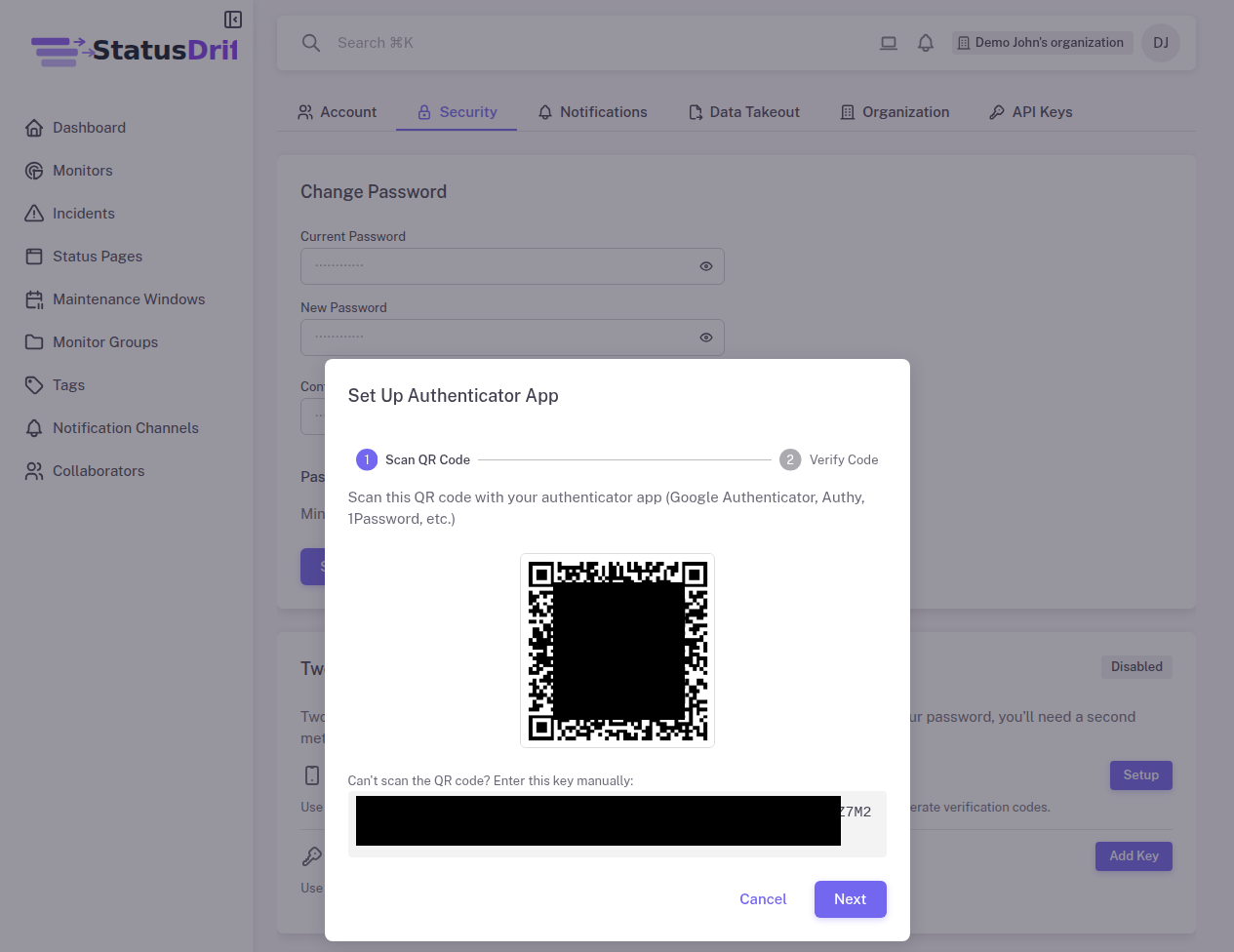
- In the Two-Factor Authentication section, click Setup next to Authenticator App
- Scan the QR code with your authenticator app, or manually enter the provided secret key
- Enter the 6-digit verification code from your app to confirm setup
- Click Verify & Enable to complete the setup
Adding Security Keys
To add a hardware security key:
- Navigate to Settings > Security
- Click Add Key in the Security Keys section
- Follow the browser prompts to register your security key
- Give your key a recognizable name for future reference
Signing In with 2FA
Once 2FA is enabled, you’ll be prompted to enter a verification code after entering your password. Open your authenticator app to get the current 6-digit code, or insert your security key when prompted.
Recovery Options
If you lose access to your authenticator app or security key, contact support with proof of account ownership. To prevent lockouts, we recommend:
- Setting up multiple authentication methods
- Keeping backup codes in a secure location
- Adding your security key to multiple devices if supported
Organization-Wide 2FA Enforcement
Organization administrators can require all team members to enable 2FA. This setting is available in Settings > Organization under “Require Two-Factor Authentication”.