
StatusDrift supports email notifications as a straightforward way to receive monitoring alerts. This guide explains how to configure email notification channels to keep your team informed about service status changes.
What This Integration Does
The email integration sends notifications to specified email addresses when:
- A monitor detects downtime
- A service recovers from an outage
- SSL certificate issues are detected
- Performance thresholds are exceeded
Prerequisites
Before configuring email notifications, ensure you have:
- Valid email addresses for notification recipients
- A StatusDrift account with at least one monitor configured
Setting Up Email Notifications
Configure email notifications in your StatusDrift dashboard:
- Log in to your StatusDrift account at app.statusdrift.com
- Navigate to Notification Channels in the sidebar
- Click Add Channel
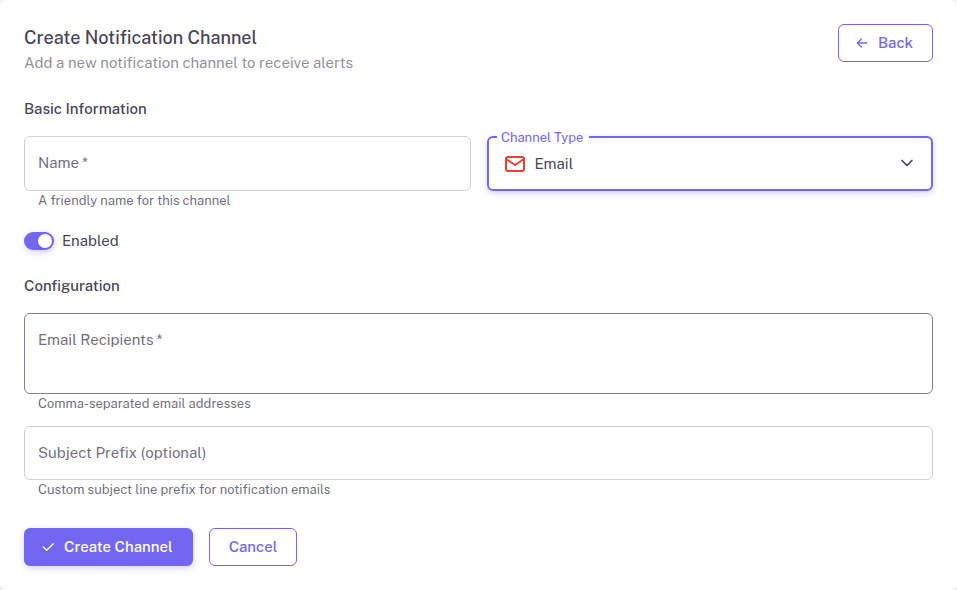
- Select Email from the integration type dropdown
- Enter a descriptive name for this channel (e.g., “DevOps Team Alerts”)
- Enter the email addresses that should receive notifications (comma-separated for multiple)
- Optionally, add a subject prefix to help identify StatusDrift emails
- Click Save
Assigning to Monitors
Connect the email channel to your monitors:
- Go to Monitors in the sidebar
- Select the monitor you want to receive email alerts for
- Find the Notification Channels section in monitor settings
- Enable the email channel you created
- Save your changes
Testing Email Notifications
Verify your email notifications are working:
- Go to Notification Channels
- Find your email channel in the list
- Click the Test button
- Check your inbox for the test email
If you do not receive the test email, check your spam or junk folder. You may need to whitelist StatusDrift emails.
Configuration Options
The email integration supports these configuration options:
| Field | Required | Description |
|---|---|---|
| Email Recipients | Yes | Email addresses to receive notifications (comma-separated) |
| Subject Prefix | No | Text prepended to email subjects for easy filtering |
Best Practices
Use distribution lists
Instead of listing individual email addresses, consider using a distribution list or group email. This makes it easier to manage recipients without updating StatusDrift configuration.
Set up email filters
Use the subject prefix feature to create email filters or rules in your email client. This helps organize monitoring alerts into dedicated folders.
Combine with other channels
Email notifications work well alongside real-time channels like Slack or PagerDuty. Use email as a backup or for record-keeping while using faster channels for immediate response.
Troubleshooting
Emails not being received
- Check spam and junk folders
- Verify the email addresses are correct
- Whitelist StatusDrift sending addresses in your email system
- Check if your email provider is blocking the messages
Emails arriving late
- Email delivery times depend on recipient mail servers
- For time-sensitive alerts, consider using Slack, Discord, or PagerDuty alongside email