
StatusDrift integrates with PagerDuty to escalate monitoring alerts through your incident management workflows. This guide explains how to configure the PagerDuty integration to automatically create incidents when your services experience issues.
What This Integration Does
The PagerDuty integration creates incidents in PagerDuty when:
- A monitor detects service downtime
- SSL certificate problems are found
- Performance thresholds are exceeded
When services recover, StatusDrift automatically resolves the corresponding PagerDuty incident.
Prerequisites
Before configuring the PagerDuty integration, ensure you have:
- A PagerDuty account with permission to create services and integrations
- A StatusDrift account with at least one monitor configured
Step 1: Create a PagerDuty Integration Key
First, create an integration in PagerDuty to get your integration key:
- Log in to your PagerDuty account
- Navigate to Services > Service Directory
- Select an existing service or create a new one for StatusDrift alerts
- Go to the Integrations tab
- Click Add an integration
- Search for and select Events API v2
- Click Add
- Copy the Integration Key displayed
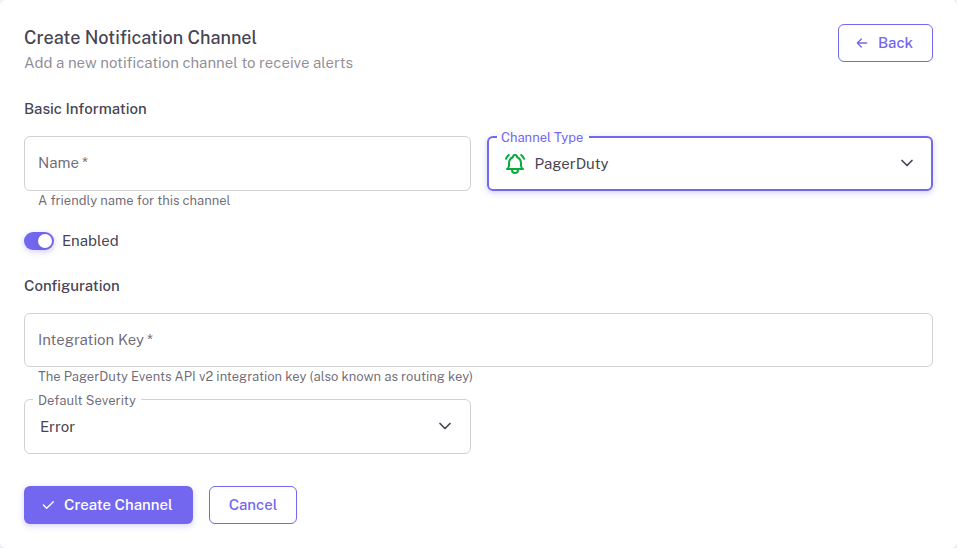
Step 2: Add the PagerDuty Channel in StatusDrift
Now configure the integration in your StatusDrift dashboard:
- Log in to your StatusDrift account at app.statusdrift.com
- Navigate to Notification Channels in the sidebar
- Click Add Channel
- Select PagerDuty from the integration type dropdown
- Enter a descriptive name for this channel
- Paste the Integration Key you copied from PagerDuty
- Select the default severity level for incidents
- Click Save
Step 3: Assign to Monitors
Connect the notification channel to your monitors:
- Go to Monitors in the sidebar
- Select the monitor you want to trigger PagerDuty incidents
- Find the Notification Channels section in monitor settings
- Enable the PagerDuty channel you created
- Save your changes
Testing the Integration
Verify your PagerDuty integration is working:
- Go to Notification Channels
- Find your PagerDuty channel in the list
- Click the Test button
- Check PagerDuty for a test incident
Remember to resolve or suppress the test incident in PagerDuty after verification.
Configuration Options
The PagerDuty integration supports these configuration options:
| Field | Required | Description |
|---|---|---|
| Integration Key | Yes | The Events API v2 integration key from PagerDuty |
| Default Severity | No | Default incident severity (critical, error, warning, info) |
Severity Levels
StatusDrift maps alert types to PagerDuty severity levels:
- Critical – Complete service outages
- Error – Partial failures or significant issues
- Warning – Performance degradation or approaching thresholds
- Info – Informational alerts like SSL expiration notices
Troubleshooting
Incidents not being created
- Verify the integration key is correct and has not been regenerated
- Check that the PagerDuty service is enabled and not in maintenance mode
- Ensure the Events API v2 integration is active
Incidents not auto-resolving
- Verify the integration is configured to allow auto-resolution
- Check that recovery notifications are enabled for the monitor