
Every monitor can have custom alert rules that determine when and how you get notified about issues. This lets you route critical alerts to different channels, add delays to prevent notification fatigue, and configure alerts for specific conditions like performance degradation or expiring certificates.
Accessing Alert Configuration
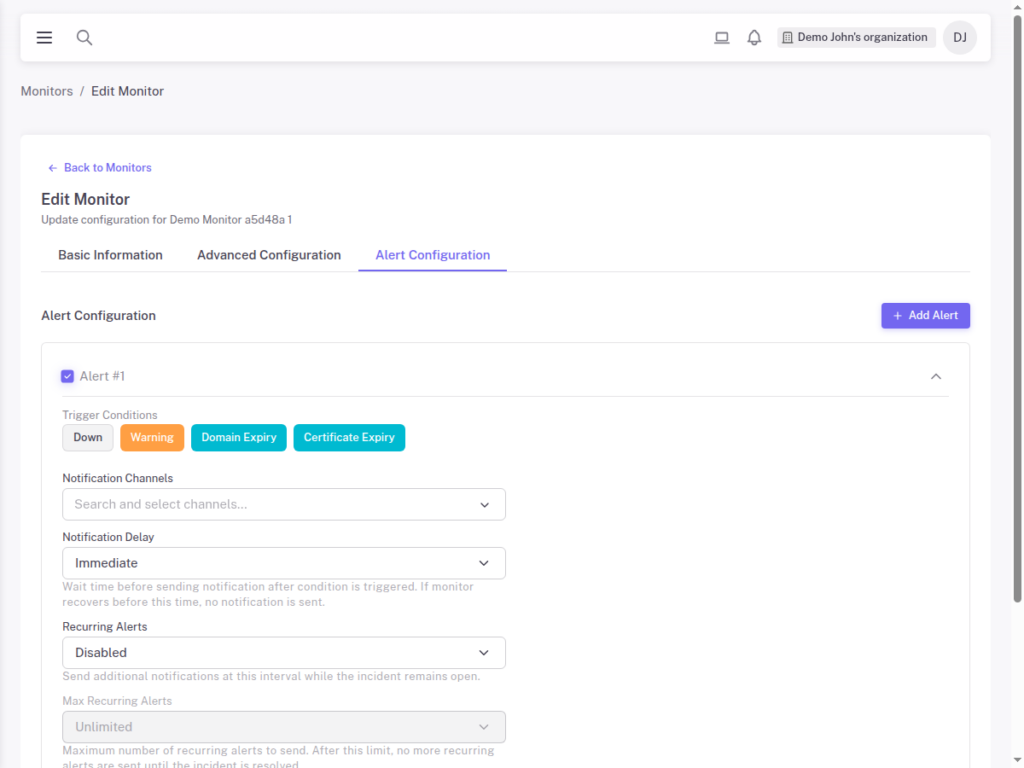
When creating or editing a monitor, click the Alert Configuration tab. Here you can add one or more alert rules, each with its own trigger condition and notification settings.
Alert Trigger Conditions
Each alert rule starts with a trigger condition that determines when the alert fires:
Down
Triggers when the monitor fails its health checks. This is the most common alert type and indicates your service is unreachable or returning errors.
The actual threshold for “down” is controlled by your Advanced Monitor Settings, specifically the Locations Down to Alert and Consecutive Checks Down to Alert values.
Warning
Triggers when the monitor’s response time exceeds the warning threshold configured in Advanced Settings. This helps you catch performance degradation before it becomes a full outage.
Use warning alerts to:
- Get early notice of slowdowns
- Track performance trends
- Catch issues during off-peak hours before they impact users
Domain Expiry
Triggers when the monitored domain is approaching its expiration date. You can configure how many days before expiry you want to be notified.
This prevents the embarrassing situation of your domain expiring unexpectedly and your service becoming unavailable.
Certificate Expiry
Triggers when the SSL/TLS certificate for your monitored endpoint is approaching expiration. Configure the number of days before expiry to receive the alert.
This is essential for:
- Certificates not covered by auto-renewal
- Catching renewal failures before they cause outages
- Compliance requirements that mandate certificate monitoring
Notification Channels
Each alert rule specifies which notification channels receive the alert. You can select one or multiple channels:
- Email – Detailed alert information sent to team members
- Slack – Alerts posted to your team channels
- Webhook – Custom integrations with your systems
- PagerDuty – Incident management integration
- Microsoft Teams – Alerts to your Teams channels
Notification channels are configured organization-wide under Settings. Each alert rule then references which channels should receive that specific alert.
Notification Delay
Adding a delay before sending notifications can reduce alert noise from brief, self-recovering issues. The delay is specified in minutes.
How it works:
- Alert condition is triggered
- StatusDrift waits for the configured delay period
- If the condition is still active, notification is sent
- If the monitor has recovered, no notification is sent
Common delay configurations:
- 0 minutes – Immediate notification (for critical services)
- 2-5 minutes – Filter brief glitches (balanced approach)
- 10+ minutes – Only notify on sustained issues
Recurring Alerts
For ongoing incidents, you may want to receive periodic reminders rather than a single notification. Recurring alerts send repeated notifications at a set interval while the issue persists, ensuring critical problems stay visible and don’t get forgotten.
How recurring alerts work:
- Initial alert triggers when the issue is detected
- If the issue persists, reminder notifications are sent at your configured interval (e.g., every 30 minutes)
- Reminders continue until the issue is resolved or the max recurring alerts limit is reached
- When the monitor recovers, a recovery notification is sent regardless of the recurring alert settings
Max Recurring Alerts
The Max Recurring Alerts setting caps how many reminder notifications you receive for a single incident. This prevents infinite notification spam during extended outages while still ensuring the issue stays visible. For example, with recurring alerts set to every 30 minutes and a max of 5, you would receive the initial alert plus up to 5 reminders (6 notifications total over about 2.5 hours). After reaching the limit, you will still receive a recovery notification when the issue is resolved.
Creating Multiple Alert Rules
A single monitor can have multiple alert rules, each with different conditions and destinations. Click Add Alert to create additional rules.
Example multi-rule configuration:
- Rule 1: Down condition, 0 delay, sends to Email + Slack
- Rule 2: Warning condition, 5 min delay, sends to Email only
- Rule 3: Certificate Expiry (30 days), sends to Email
Common Alert Configurations
Critical Production Service
For your most important services where every minute of downtime matters:
- Down alert with 0 delay to PagerDuty, Email, and Slack
- Warning alert with 2 min delay to Email
- Certificate expiry alert at 30 days to Email
Standard Service
For important but not mission-critical services:
- Down alert with 5 min delay to Email and Slack
- Certificate expiry alert at 14 days to Email
Internal Tools
For internal services that can tolerate some downtime:
- Down alert with 15 min delay to Email only
SSL-Focused Monitoring
When certificate management is a concern:
- Certificate expiry at 60 days to Email (first warning)
- Certificate expiry at 3 days to Email (critical)
- Certificate expiry at 3 days to Email + PagerDuty (critical)
Best Practices
- Match urgency to channel – Use PagerDuty for critical issues, email for informational alerts
- Add delays for non-critical monitors – Reduce notification fatigue from transient issues
- Layer your alerts – Use escalating notifications (email first, then PagerDuty if still down)
- Monitor certificates proactively – Set expiry alerts well before expiration
- Review and tune – Adjust delays and thresholds based on actual alert patterns
- Keep critical alerts actionable – If every alert is urgent, none are
Next Steps
- Advanced Monitor Settings – Configure warning thresholds and alert sensitivity
- Organizing Monitors with Groups – Structure monitors for easier management
- Using Tags to Categorize Monitors – Label monitors by priority or type