
Tags provide a flexible way to categorize and filter your monitors across groups. While monitor groups define where a monitor belongs organizationally, tags let you add cross-cutting labels that help you find and filter monitors based on shared characteristics.
Tags vs Groups: When to Use Each
Understanding when to use tags versus groups helps you build an effective organization system:
Use Groups when:
- Monitors belong to a single organizational unit (team, environment, service)
- You need to control access permissions
- Monitors should appear together on status pages
Use Tags when:
- A characteristic applies across multiple groups
- You want multiple labels on a single monitor
- You need quick visual identification
- Categories might overlap (a monitor can be both “critical” and “api”)
For example, a monitor might belong to the “Production Services” group while having tags for “critical”, “api”, and “payment-team”.
Creating Tags
To create a new tag:
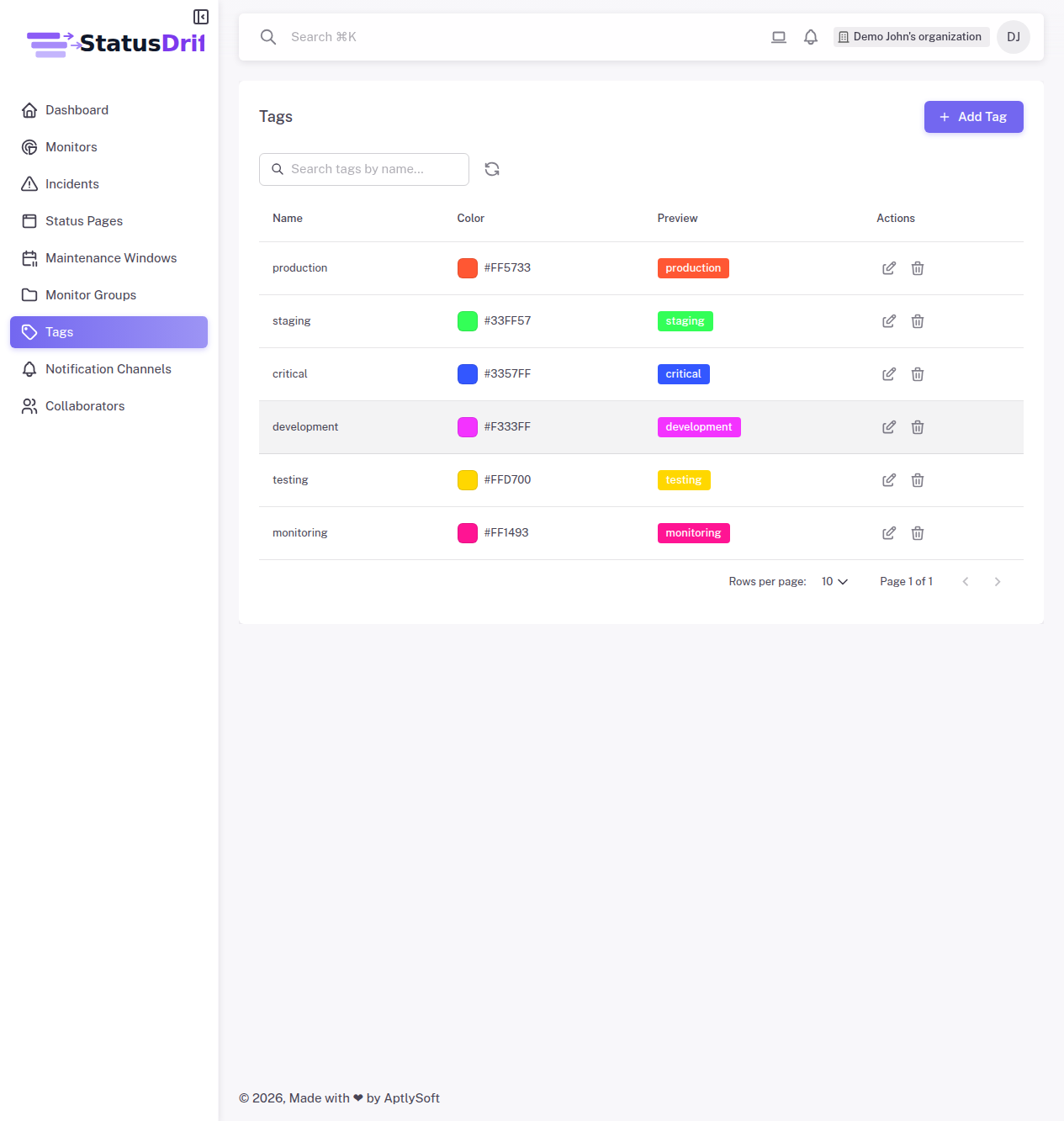
- Navigate to Tags in the sidebar
- Click Add Tag
- Enter a tag name (keep it short and descriptive)
- Select a color from the color picker
- Click Create
The color you choose will appear as a visual badge on monitors, making it easy to identify tagged monitors at a glance in the monitors list.
Applying Tags to Monitors
Tags can be applied when creating a new monitor or by editing an existing one:
- Open the monitor creation form or edit an existing monitor
- Find the Tags (Optional) field
- Click to open the tag selector
- Select one or more tags to apply
- Save the monitor
Unlike groups where a monitor can only belong to one group, you can apply multiple tags to a single monitor.
Filtering by Tags
Once you have tagged monitors, you can filter your views:
In the Monitors List
Use the Tags filter dropdown to show only monitors with specific tags. This is helpful when you need to quickly find all critical monitors or all monitors related to a particular technology.
In Group Views
When viewing a monitor group, you can further filter by tags. This lets you answer questions like “Show me all critical API monitors in the Production group.”
Tag Strategies
Here are effective ways to use tags in your monitoring setup:
Priority-Based Tags
- critical – Business-critical services requiring immediate attention
- standard – Important but not business-critical
- low – Nice-to-have monitoring, can wait for business hours
Technology Stack Tags
- nodejs, python, go – Runtime/language
- postgres, redis, mongodb – Database technology
- aws, gcp, azure – Cloud provider
Service Type Tags
- api – API endpoints
- frontend – User-facing web applications
- internal – Internal tools and services
- third-party – External dependencies
Team Ownership Tags
- platform-team
- payments-team
- mobile-team
Best Practices
- Establish naming conventions – Use lowercase, hyphenated names consistently (e.g., “payment-api” not “Payment API”)
- Use meaningful colors – Consider using red for critical, yellow for warning-level, and green for low priority
- Keep tag count manageable – Too many tags reduce their usefulness. Aim for 10-20 well-defined tags
- Document your tagging strategy – Share the meaning of each tag with your team
- Combine with groups – Use groups for organizational hierarchy and tags for cross-cutting concerns
- Review regularly – Remove unused tags and consolidate similar ones
Next Steps
- Organizing Monitors with Groups – Learn how groups complement tags for complete organization
- Advanced Monitor Settings – Configure timeouts, alert sensitivity, and more
- Configuring Monitor Alerts – Set up custom alert rules for your monitors