
Never miss an outage with StatusDrift’s flexible notification system. Get alerts through your preferred channels the moment something goes wrong.
StatusDrift uses a two-step approach to notifications: first, you create notification channels to define where alerts should be sent, then you configure alerts on individual monitors to specify when and how to use those channels.
Step 1: Create Notification Channels
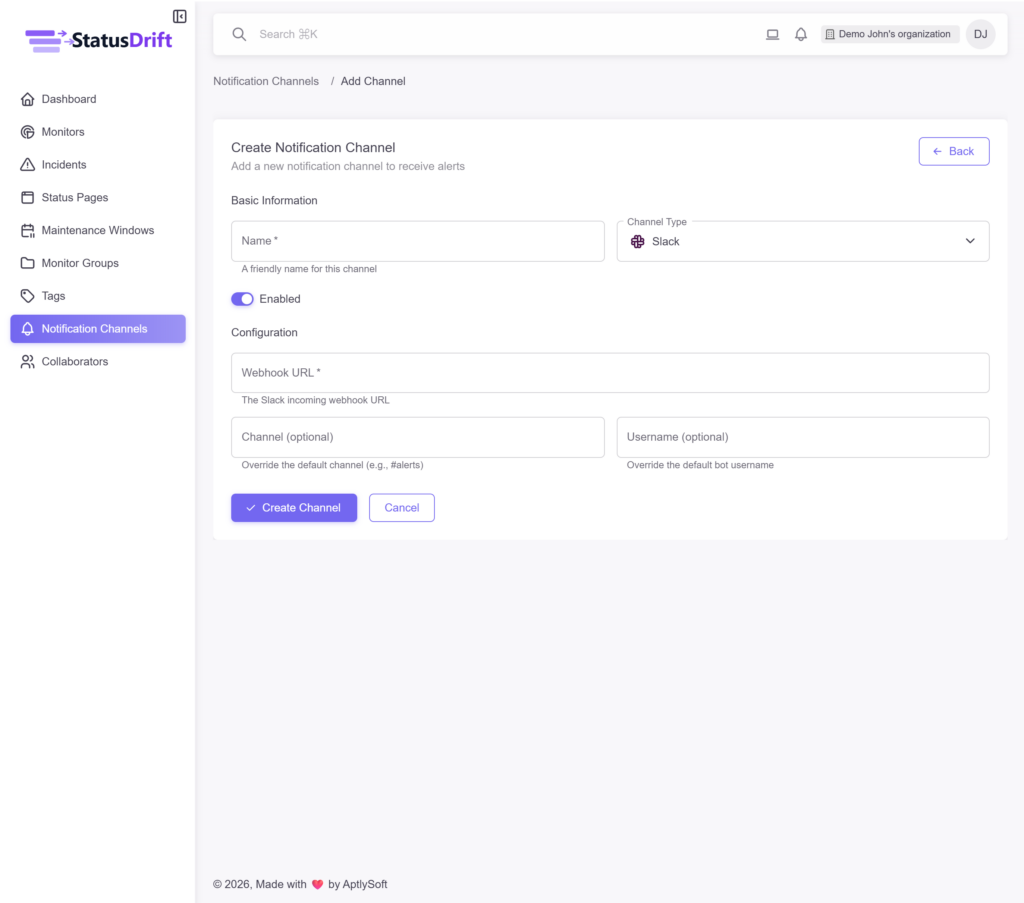
Notification channels are managed separately from monitors and can be reused across multiple monitors. To create a notification channel:
- Navigate to Notification Channels in the sidebar
- Click Add Channel
- Enter a friendly name for the channel
- Select your channel type
- Configure the channel-specific settings (webhook URL, email address, etc.)
- Click Create Channel
Supported Channel Types
StatusDrift supports a wide range of notification methods:
- Email – Instant email alerts to one or more addresses
- Slack – Post alerts directly to your Slack channels
- Microsoft Teams – Alerts in your Teams channels
- Google Chat – Send alerts to Google Chat spaces
- Discord – Integrate with your Discord server
- Telegram – Receive alerts via Telegram bot
- PagerDuty – Trigger PagerDuty incidents automatically
- OpsGenie – Create OpsGenie alerts
- Generic Webhook – Custom HTTP callbacks for automation
- Zapier, IFTTT, n8n – Connect with automation platforms
- And more – Including PagerTree, Mattermost, Zenduty, Pushbullet, Pushover, VictorOps, Datadog, and ServiceNow
Step 2: Configure Alerts on Monitors
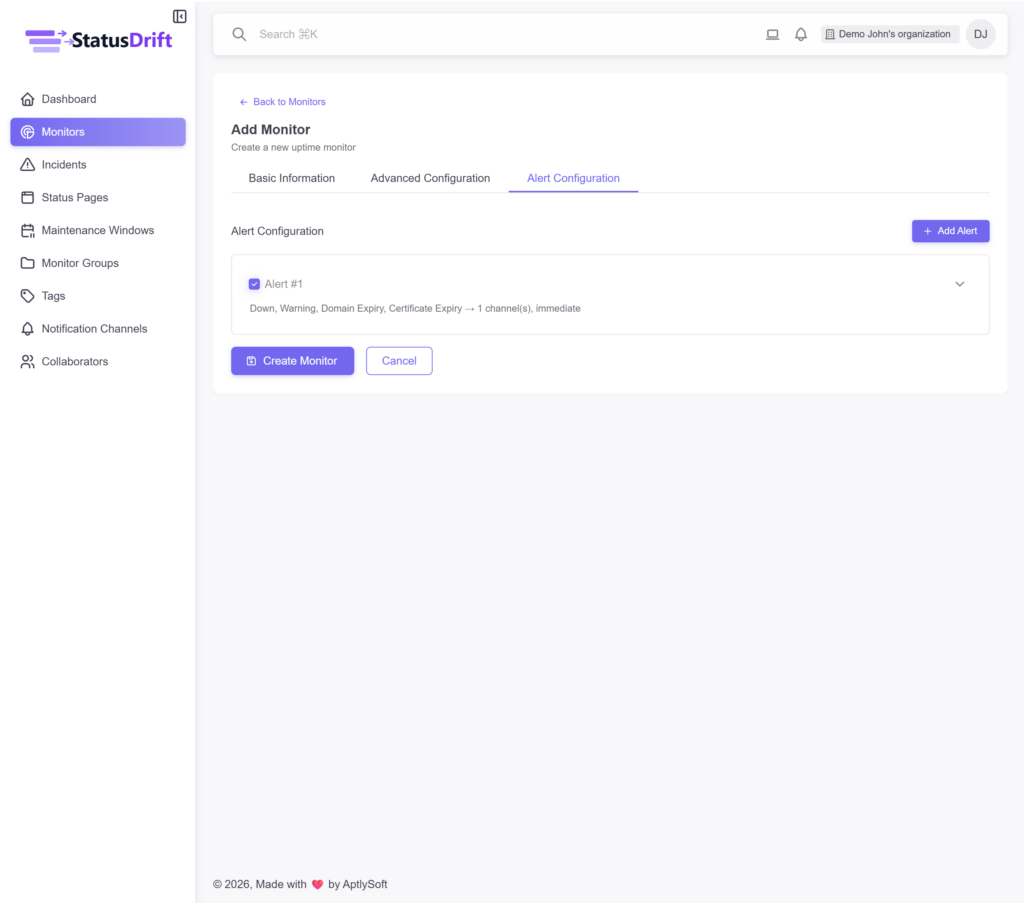
Once you have created notification channels, you can configure alerts on your monitors. When adding or editing a monitor, go to the Alert Configuration tab (the third tab).
Alert Settings
Each alert can be customized with the following options:
- Trigger Conditions – Choose which events trigger the alert: Down, Warning, Domain Expiry, or Certificate Expiry
- Notification Channels – Select one or more channels to receive the alert
- Notification Delay – Set how long to wait before sending the notification. If the monitor recovers before this time, no notification is sent
You can create multiple alerts per monitor, allowing you to send different types of notifications to different channels based on the trigger condition.
Testing Your Notifications
After setting up a notification channel, you can test it from the Notification Channels page by clicking the test icon next to any channel. You can also view the Delivery History to see all sent notifications and their status.