
Organization settings allow you to configure company-wide preferences, security policies, and access controls for your StatusDrift workspace. These settings apply to all members of your organization.
Accessing Organization Settings
To manage your organization:
- Click on your profile avatar in the top-right corner
- Select Settings from the dropdown menu
- Navigate to the Organization tab
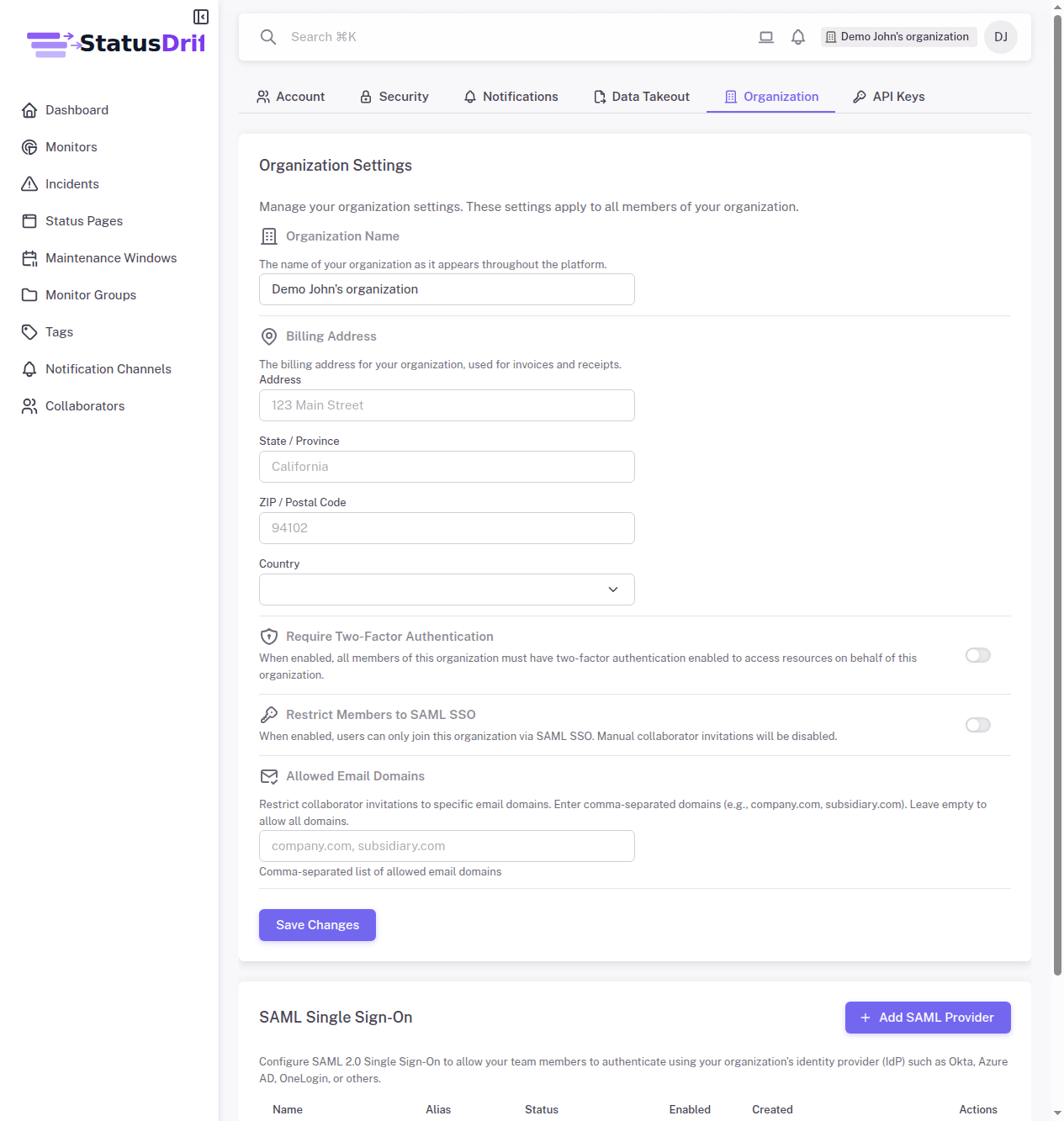
Basic Settings
Organization Name
The name of your organization as it appears throughout the platform. This is displayed in the header, on status pages (if configured), and in team member invitations.
Billing Address
Enter your organization’s billing address for invoices and receipts. This includes:
- Street Address
- State / Province
- ZIP / Postal Code
- Country
Security Settings
Require Two-Factor Authentication
When enabled, all members of this organization must have two-factor authentication enabled to access resources on behalf of this organization. This is a critical security control for teams handling sensitive infrastructure.
After enabling this setting, team members without 2FA configured will be prompted to set it up before they can continue using the platform.
Restrict Members to SAML SSO
When enabled, users can only join this organization via SAML SSO. Manual collaborator invitations will be disabled. This ensures all access is controlled through your identity provider.
Allowed Email Domains
Restrict collaborator invitations to specific email domains. Enter comma-separated domains (e.g., company.com, subsidiary.com). Leave empty to allow all domains.
This prevents accidentally inviting external users and ensures only employees with company email addresses can join your organization.
SAML Single Sign-On
Configure SAML 2.0 Single Sign-On to allow your team members to authenticate using your organization’s identity provider (IdP) such as Okta, Azure AD, OneLogin, or others.
Benefits of SAML SSO:
- Centralized access management through your IdP
- Automatic user provisioning and deprovisioning
- Reduced password fatigue for team members
- Enhanced security through your existing authentication policies
To add a SAML provider, click Add SAML Provider and follow the setup wizard. You’ll need to configure both StatusDrift and your identity provider with the appropriate metadata and certificates.
SSO Setup Guides
For step-by-step instructions on configuring SSO with your identity provider, see the following guides:
- Configuring SAML/SSO Integration – General overview and concepts
- Configuring SSO with Okta
- Configuring SSO with Azure AD
- Configuring SSO with Google Workspace
- Configuring SSO with OneLogin
- Configuring SSO with Auth0
Saving Changes
After making changes to your organization settings, click Save Changes to apply them. Security settings take effect immediately for all organization members.
Permissions
Only organization owners and administrators can modify organization settings. Team members with other roles will not see the Organization tab in their settings.