
Reports in StatusDrift help you review uptime trends, track SLA performance, and summarize incident activity. You can generate a report on demand from Manual Reports or deliver the same kind of report automatically from Scheduled Reports.
Report types
- Uptime Report: Covers one or more monitors and generates a separate PDF for each included monitor.
- SLA Compliance Report: Uses one or more SLA policies and generates a PDF for each selected policy when the report is produced.
- Incident Digest: Summarizes incident activity for the selected period in a consolidated PDF.
Create a manual report
Go to Reports, open Manual, and select Generate Report. Then choose the report type and define the scope of the report.
- Uptime and Incident Digest reports let you choose individual monitors, tags, or monitor groups.
- Uptime and Incident Digest reports also use a custom From and To date range.
- SLA Compliance reports use the selected SLA policies instead of a custom date range.
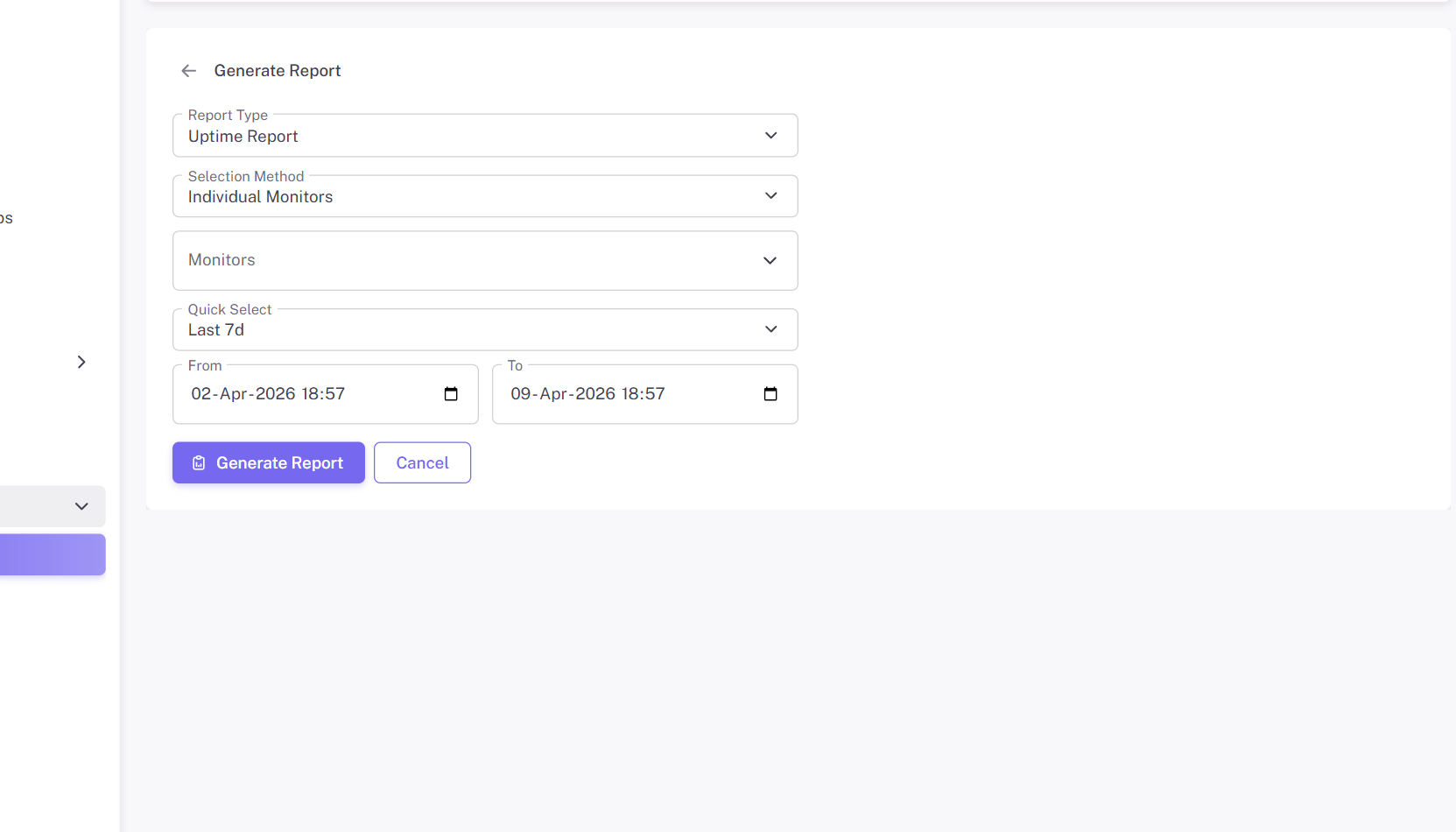
Manual reports are created from the Generate Report form.
Review manual report results
After you submit a manual report, it appears in Manual Reports. This page shows the report name, the number of included monitors, the current status, and when it was created.
Open any report to see the report metadata, generated PDFs, and download options. Completed uptime reports normally include one PDF per monitor. Completed SLA reports normally include one PDF per SLA policy. Incident digests normally include a single consolidated PDF.
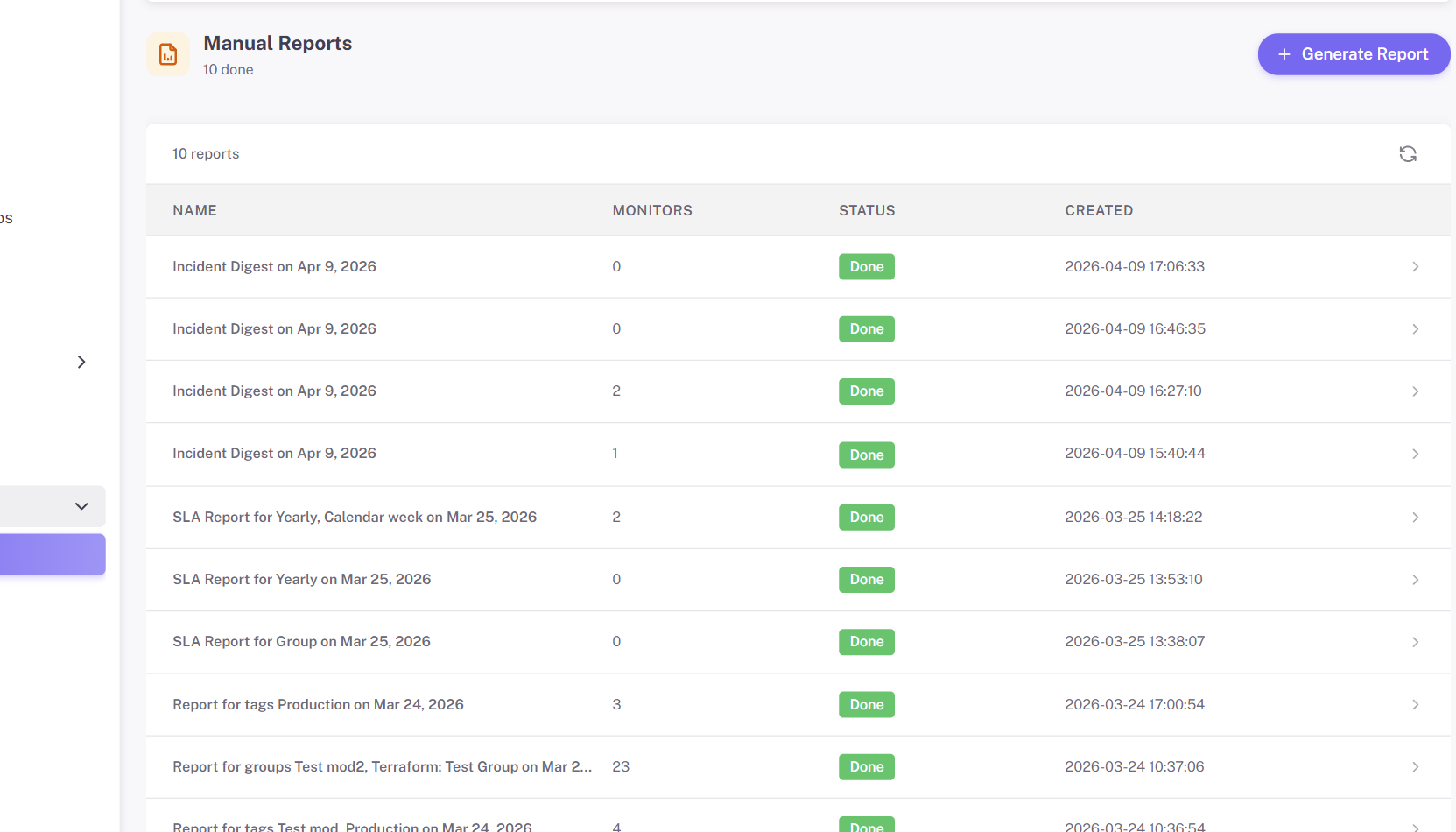
The Manual Reports page shows each generated report with its status and created time.
Schedule recurring reports
Use Scheduled Reports when you want reports to be delivered automatically on a daily, weekly, or monthly cadence. The scheduled report form supports the same report types as manual reports: uptime, SLA, and incident digest.
- Choose a frequency, time of day, and timezone.
- Set a rolling report range such as the last 24 hours, last 7 days, or last 30 days for uptime and incident reports.
- Send reports to one or more email recipients and optionally to enabled email notification channels.
- For uptime and incident reports, target monitors, tags, or groups. For SLA reports, target one or more SLA policies.
If Scheduled Reports is locked in your account, your current plan does not include scheduled reporting.
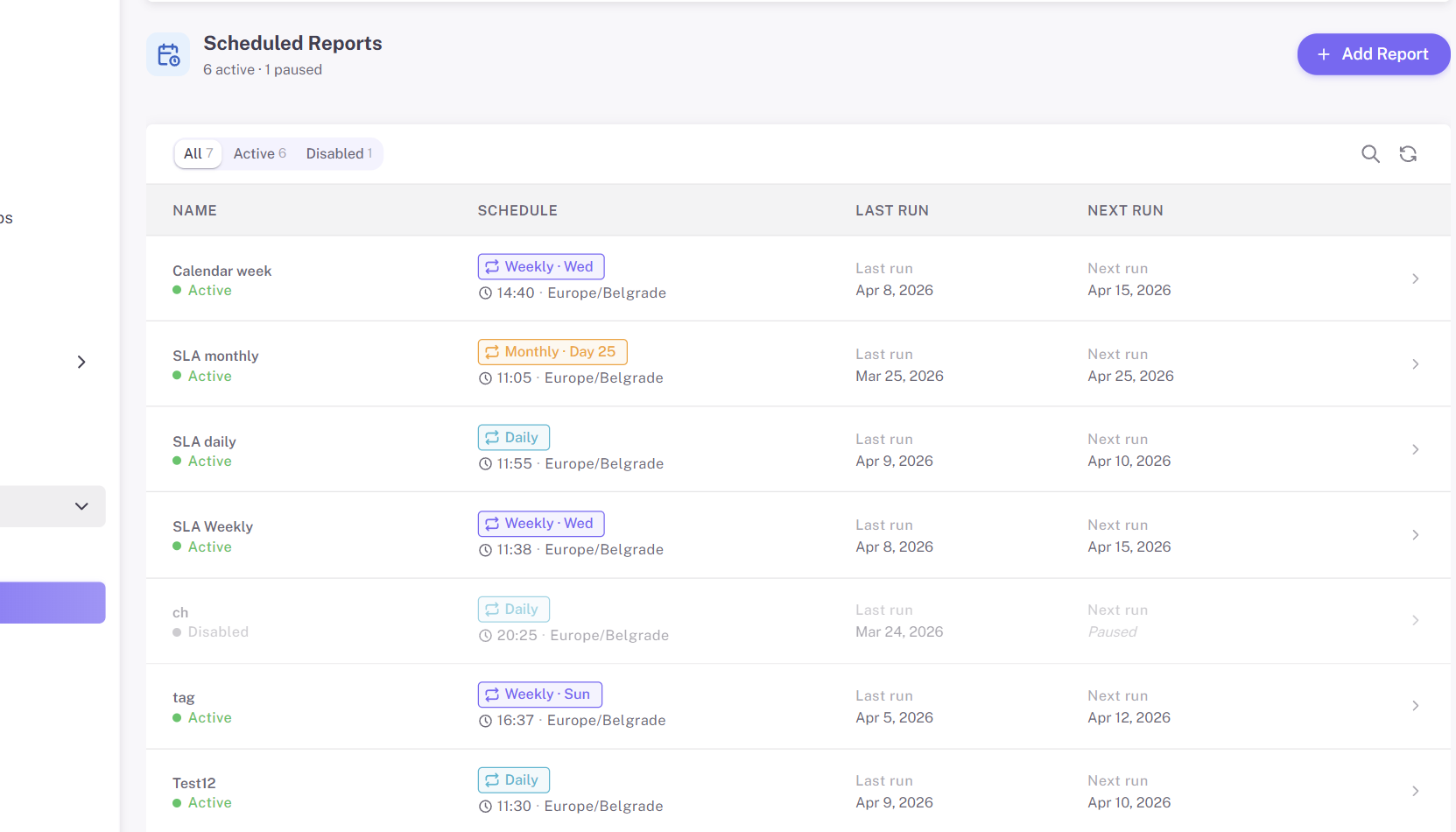
Scheduled Reports shows recurring report schedules, last run, and next run.
What you can find in scheduled report pages
The Scheduled Reports list shows whether a report is active or disabled, when it last ran, and when it will run next. When you open an individual scheduled report, you can review its full configuration, selected recipients, selected monitors, tags, groups, or SLA policies, and the execution history for past runs.
Execution history is especially useful when you need to confirm that a recurring report ran on time, see whether it completed successfully, and download PDFs from a previous execution.
Manual or scheduled?
- Use manual reports when you need a one-time export for an ad hoc review, a customer request, or a meeting.
- Use scheduled reports when the same stakeholders need regular reporting without generating it manually each time.