
Before relying on a notification channel for critical alerts, it is important to verify that it is properly configured and working. StatusDrift provides a built-in test feature that allows you to send a test notification through any channel to confirm delivery.
Why Test Your Channels
Testing notification channels helps you:
- Verify that credentials and API keys are correctly configured
- Confirm that notifications reach the intended recipients
- Check that message formatting appears correctly in the destination service
- Identify any connectivity or authentication issues before they affect real alerts
How to Test a Channel
There are two ways to test a notification channel in StatusDrift:
From the Notification Channels List
Navigate to Notification Channels in your dashboard. Each channel in the list displays a Test button in the Actions column. Click this button to immediately send a test notification through that channel.
From the Channel Detail Page
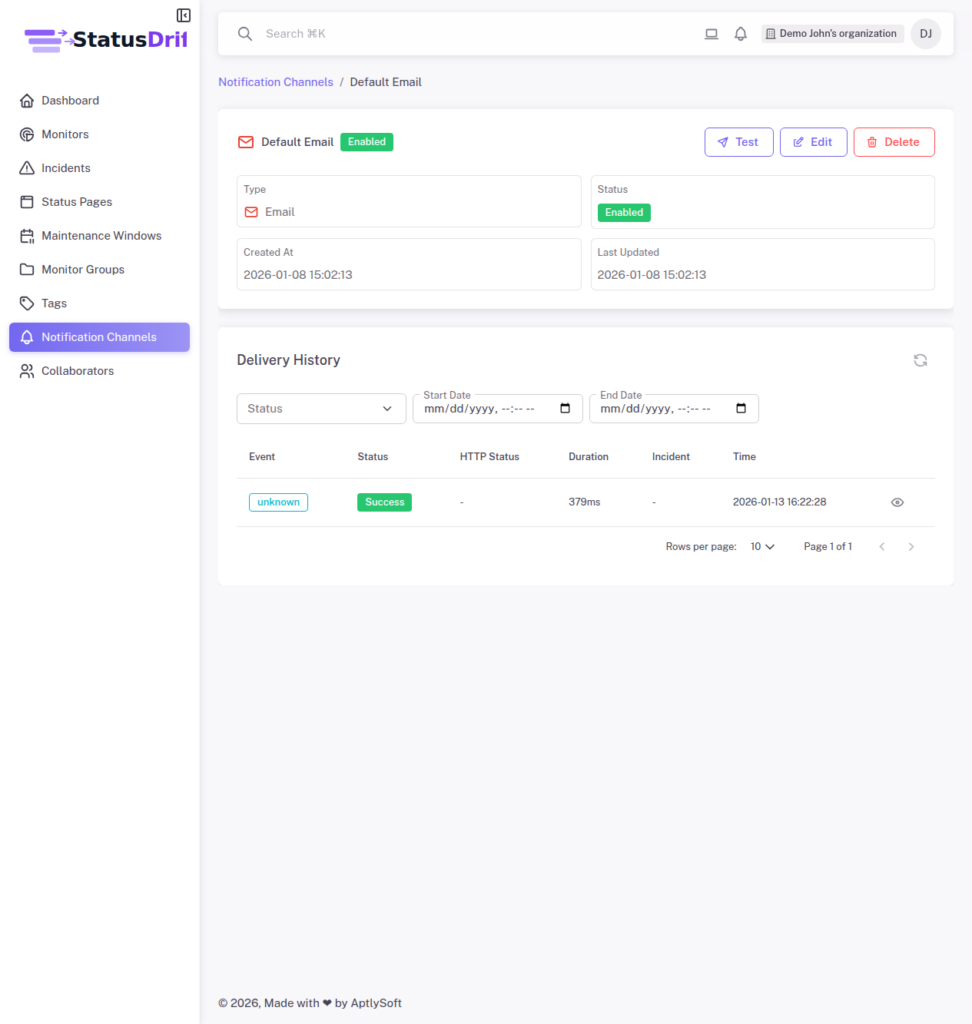
Click on any channel name to open its detail page. At the top of the page, you will find a Test button alongside Edit and Delete options. This page also displays the channel’s delivery history, allowing you to verify test results immediately.
Understanding Test Results
When you click the Test button, StatusDrift sends a test notification through the channel and displays a confirmation message. A successful test shows “Test notification sent successfully!” in a green notification banner.
After sending a test, check the Delivery History section on the channel detail page. The test notification will appear with:
- Event type: Shows as “unknown” for manual tests (since they are not triggered by an actual incident)
- Status: Indicates Success or Failed
- Duration: Shows how long the delivery took in milliseconds
- Timestamp: Records when the test was sent
Troubleshooting Failed Tests
If a test notification fails, check the following:
- Webhook URL: Ensure the URL is correct and accessible
- API credentials: Verify that API keys or tokens have not expired
- Service permissions: Confirm that the integration has necessary permissions in the destination service
- Network connectivity: Check if the destination service is reachable
Click View details on any delivery record to see comprehensive information about the attempt, including HTTP status codes and retry information that can help diagnose issues.
Best Practices
- Test channels immediately after creation to catch configuration errors early
- Periodically test critical notification channels to ensure they remain functional
- Test after making any changes to channel configuration or credentials
- Review delivery history to identify patterns in failed notifications