
When creating a status page in StatusDrift, you need to choose what content to display. The Type dropdown in the Content Source section offers five options, each suited to different use cases.
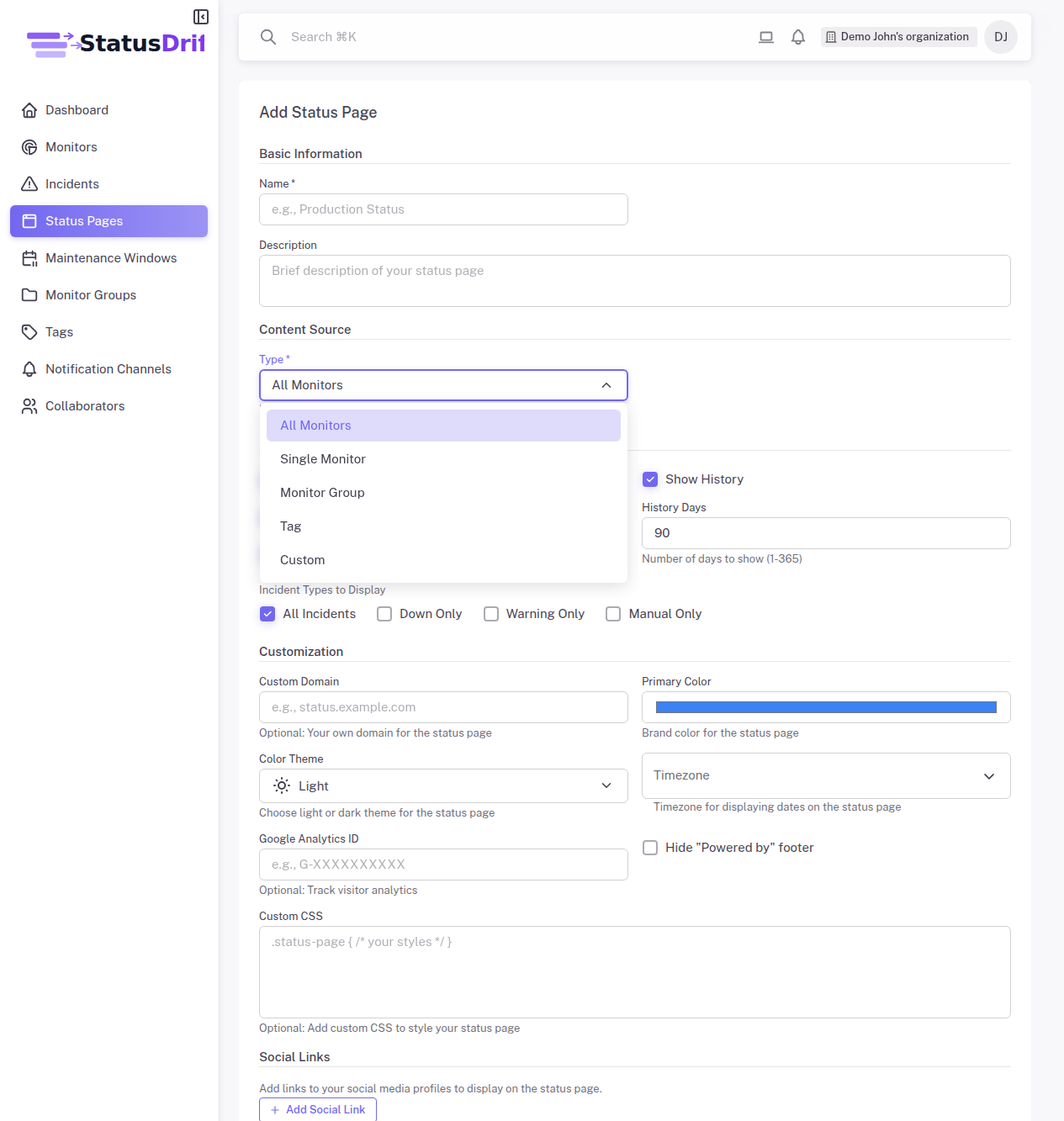
All Monitors
The All Monitors option displays every monitor in your account on a single status page. This is the simplest option and works well for:
- Small organizations with few monitors
- Internal status pages where all services are relevant
- Quick setup without additional configuration
When you add new monitors to your account, they automatically appear on status pages using this type.
Single Monitor
The Single Monitor option creates a dedicated status page for one specific service. Use this when:
- You want to provide status information for a specific product or API
- Different customer segments need different status pages
- You want to embed status information for a single service on your website
After selecting Single Monitor, choose the specific monitor from the dropdown that appears.
Monitor Group
The Monitor Group option displays all monitors belonging to a specific group. This is ideal for:
- Organizing services by product line (e.g., “API Services”, “Web Applications”)
- Creating separate status pages for different environments (production, staging)
- Grouping related services for specific customer segments
Before using this option, create monitor groups in the Monitor Groups section of the sidebar. Then select the desired group when creating your status page.
Tag
The Tag option shows all monitors that have a specific tag assigned. This provides flexible organization because:
- A single monitor can have multiple tags
- You can create overlapping categories without duplicating monitors
- Tags can represent any classification (region, team, priority level)
Create tags in the Tags section, assign them to your monitors, then select the tag when creating your status page.
Custom
The Custom option gives you complete control over your status page layout. With custom status pages, you can:
- Create named sections to organize monitors logically
- Arrange monitors in any order you prefer
- Mix monitors from different groups or tags on a single page
- Create a hierarchy that matches your service architecture
When you select Custom, you can add sections and choose which monitors appear in each section. This is perfect for complex organizations with many services that need a structured presentation.
Choosing the Right Type
Consider these factors when selecting a content type:
- Audience – Who will view this status page? Internal teams may need all monitors, while customers may only need specific services.
- Scale – How many monitors do you have? More monitors may benefit from grouping or custom layouts.
- Maintenance – Do you want new monitors to appear automatically (All Monitors, Groups, Tags) or manually manage the page (Custom)?
You can change the content type after creating a status page by editing it from the Status Pages list.