
StatusDrift supports a wide variety of notification channels to ensure you receive alerts through your preferred communication tools. You can configure multiple channels and assign them to different monitors based on your team’s workflow.
Available Channel Types
StatusDrift integrates with 20 different notification services across various categories:
Team Messaging
- Slack – Send alerts to Slack channels or direct messages
- Microsoft Teams – Integrate with Microsoft Teams channels
- Google Chat – Post notifications to Google Chat spaces
- Discord – Deliver alerts to Discord servers
- Mattermost – Connect to self-hosted Mattermost instances
Incident Management
- PagerDuty – Trigger incidents and manage on-call schedules
- PagerTree – Route alerts to the right team members
- OpsGenie – Integrate with Atlassian OpsGenie for incident response
- VictorOps (Splunk On-Call) – Coordinate incident response
- Zenduty – Manage alerts and incident workflows
Personal Notifications
- Email – Receive alerts via email to any address
- Telegram – Get notifications on Telegram
- Pushover – Send push notifications to mobile devices
- Pushbullet – Receive alerts across all your devices
Automation and Integration
- Generic Webhook – Send alerts to any HTTP endpoint
- Zapier – Connect to thousands of apps via Zapier
- IFTTT – Trigger applets and automations
- n8n – Integrate with n8n workflow automation
Observability Platforms
- Datadog – Forward alerts to Datadog for centralized monitoring
- ServiceNow – Create incidents in ServiceNow ITSM
Configuring Notification Channels
To add a new notification channel, navigate to Notification Channels in your StatusDrift dashboard and click “Add Channel”. Select your preferred channel type and follow the setup instructions specific to that service.
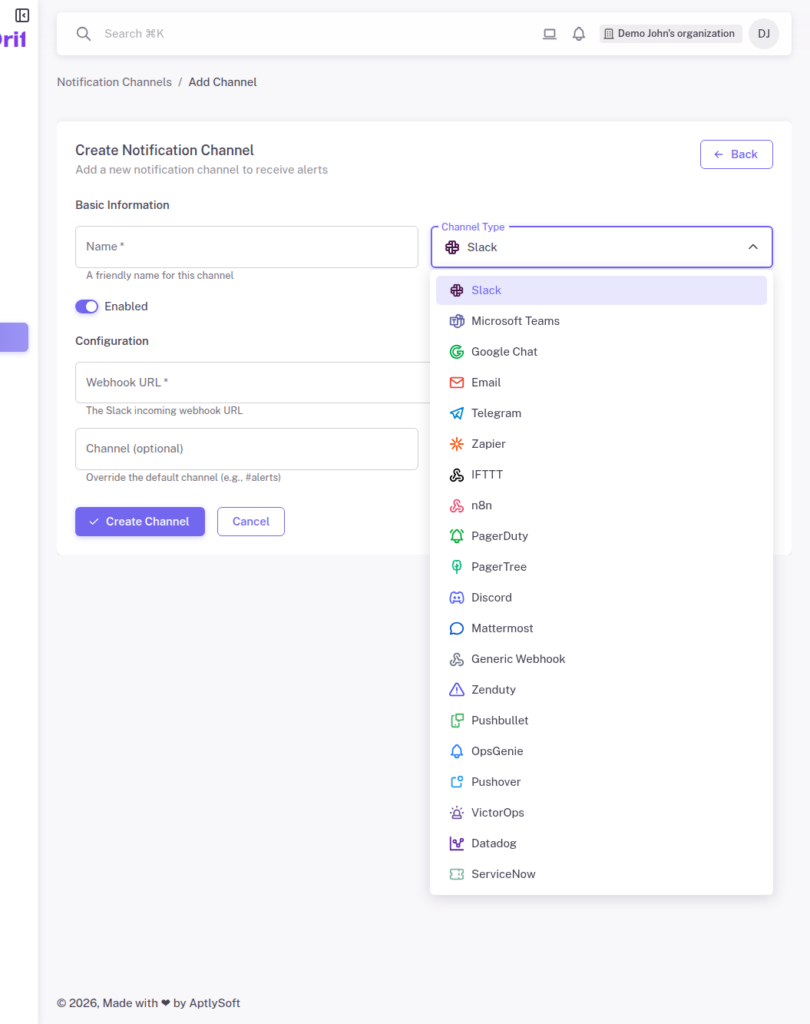
Most channels require authentication credentials such as webhook URLs, API keys, or OAuth connections. Each channel type includes detailed setup instructions within the configuration form.
Best Practices
- Configure multiple channels for critical alerts to ensure redundancy
- Use team messaging for non-urgent alerts that can wait for business hours
- Reserve incident management integrations for production-critical monitors
- Test each channel after setup to verify it works correctly