
Coverage changes in StatusDrift are handled with overrides. An override temporarily replaces the scheduled responder for a defined time window without changing the underlying rotation order.
Use this when someone is out of office, swapping a shift, or covering a specific day or weekend. Overrides are created from the schedule detail page.
Where to make a coverage change
Open Observe, go to On-Call, open Schedules, and select the schedule you want to adjust. From there, you have two ways to start an override.
- Use the switch icon in Shift Timeline when you want to start from a specific scheduled shift. This is useful because the selected time window is already tied to that shift.
- Use Add override in the Overrides section when you want to enter the coverage change manually from scratch.
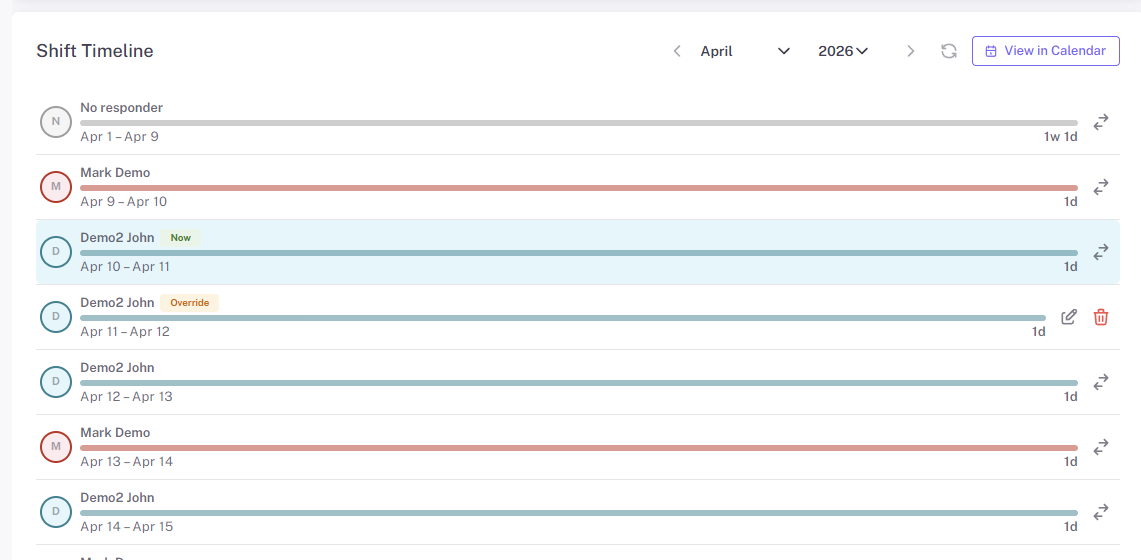
Use the shift timeline when you want to start a coverage change from a specific shift.
Create the override
After you start the override flow, StatusDrift opens the override form. Choose the replacement responder, set the override start and end times, and optionally add a note so the reason for the coverage change is clear to the team.
- Use Replacement responder to choose who should cover the shift.
- Use Override starts at and Override ends at to define the exact temporary coverage window.
- Use Note to document the reason, such as vacation coverage or a shift swap.
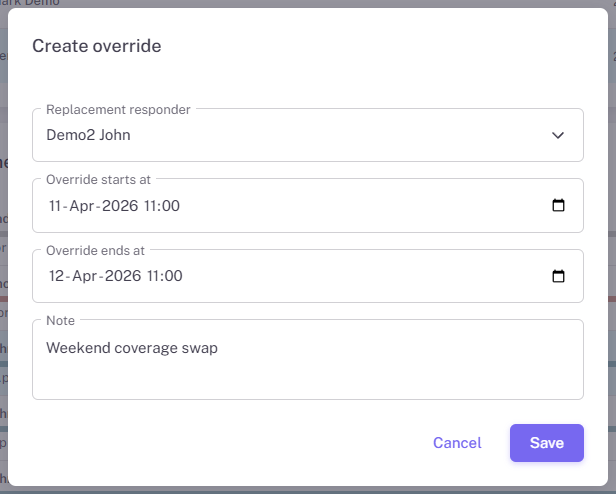
An override temporarily replaces the scheduled responder for a specific time window.
Review and manage overrides
After you save the override, it appears in the Overrides section on the schedule page. StatusDrift marks each override as Upcoming, Active, or Expired so you can see its current state immediately.
From the same section, you can edit or delete an override if plans change again. The shift timeline and current on-call coverage update automatically to reflect the temporary assignment.

After you save the override, it appears in the Overrides section with its current status.
Recommended use
- Use the timeline switch icon when you are replacing one specific handoff or shift.
- Use Add override when you already know the replacement window and just need to enter it directly.
- Keep the time window narrow and add a short note so the temporary change is easy to understand later.