
Maintenance windows allow you to schedule planned downtime for your monitored services. During a maintenance window, StatusDrift will suppress alerts for affected monitors, preventing unnecessary notifications during expected outages.
Why Use Maintenance Windows
Scheduled maintenance is a normal part of operating reliable services. Deployments, database migrations, server updates, and infrastructure changes can all cause temporary disruptions. Without maintenance windows, these planned activities would trigger false alerts and potentially cause alert fatigue among your team.
Schedule Types
StatusDrift supports several maintenance schedule types to accommodate different operational needs:
- One-time – Schedule a single maintenance window for a specific date and time range. Ideal for one-off deployments or migrations.
- Daily – Set a recurring daily maintenance window. Useful for services that require daily restarts or automated maintenance tasks.
- Weekly – Define maintenance that occurs on specific days of the week. Common for weekly deployment schedules or weekend maintenance routines.
- Monthly – Schedule maintenance for specific days each month. Appropriate for monthly patch cycles or periodic system updates.
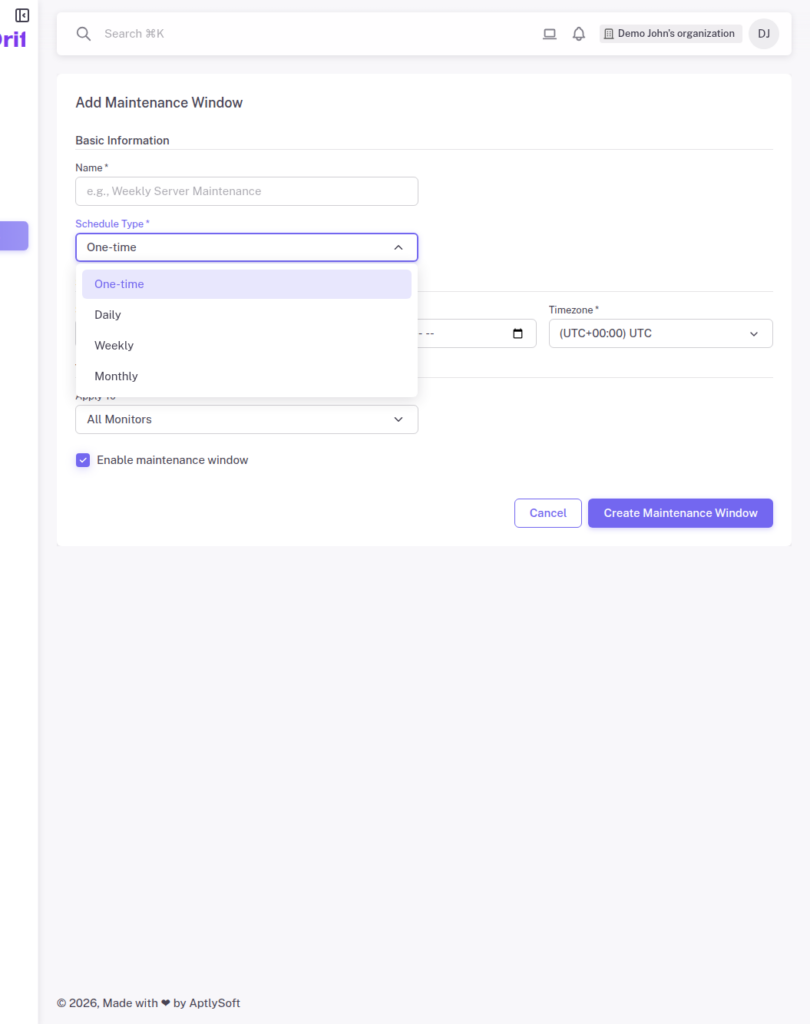
Creating a Maintenance Window
To create a maintenance window, navigate to Maintenance Windows in your StatusDrift dashboard and click “Add Maintenance Window”. You will need to provide:
- Name – A descriptive name for the maintenance window (e.g., “Weekly Deployment Window” or “Database Maintenance”)
- Schedule Type – Select one-time, daily, weekly, or monthly
- Time Range – Specify when the maintenance window starts and ends
- Timezone – The timezone for the scheduled times
- Affected Monitors – Select which monitors should be silenced during the maintenance period
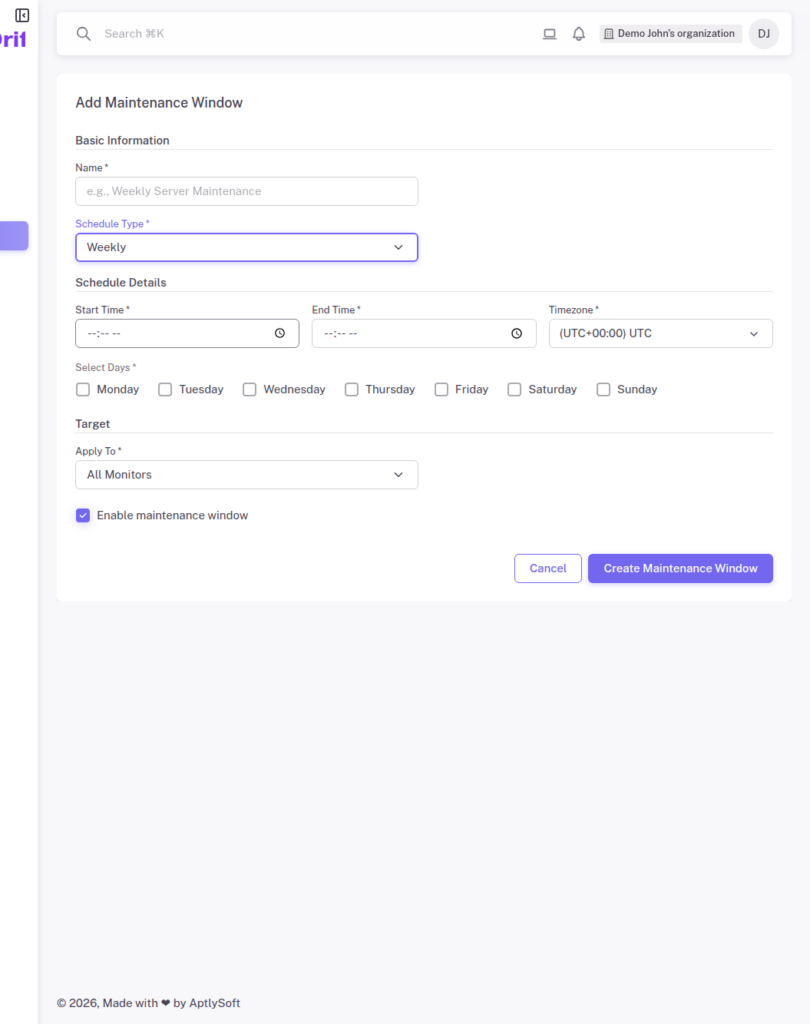
Alert Behavior During Maintenance
When a monitor is covered by an active maintenance window:
- The monitor continues to run health checks as normal
- Check failures are recorded in the monitoring history
- No alert notifications are sent to any configured channels
- The monitor status in the dashboard shows a maintenance indicator
Once the maintenance window ends, normal alerting behavior resumes automatically. If the monitor is still in a failed state when maintenance ends, an alert will be triggered at that point.
Best Practices
- Add buffer time – Schedule maintenance windows slightly longer than the expected duration to account for delays
- Use descriptive names – Clear naming helps team members understand what maintenance is occurring
- Review recurring schedules – Periodically audit your recurring maintenance windows to ensure they still align with your operational practices
- Coordinate with your team – Ensure relevant team members are aware of scheduled maintenance windows