
StatusDrift offers extensive customization options to match your status page with your brand identity. From colors and themes to custom CSS and social links, you can create a professional status page that feels like an extension of your product.
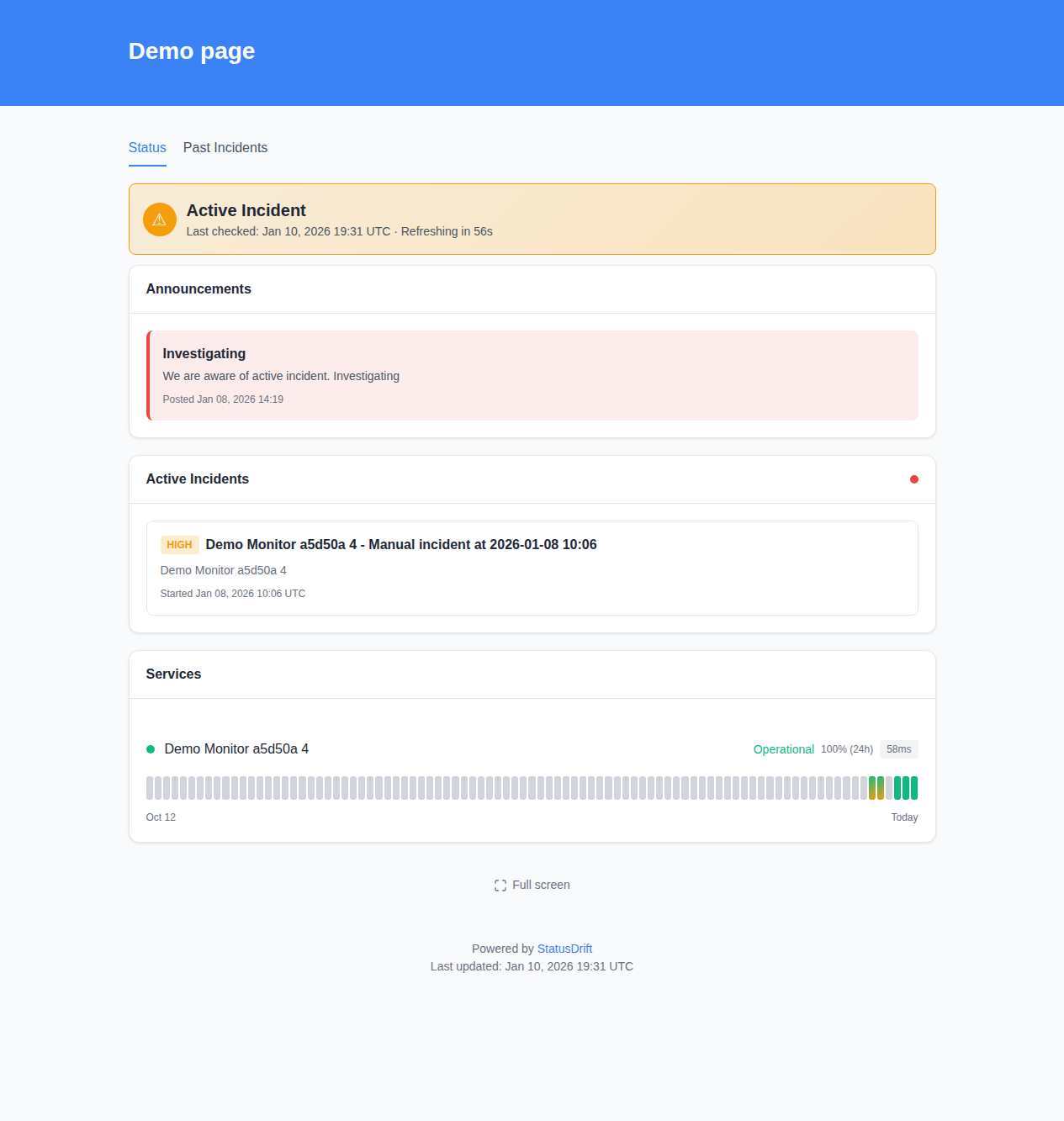
Primary Color
The Primary Color setting controls the main accent color used throughout your status page. This color appears in:
- The header background
- Links and interactive elements
- Buttons and highlights
Enter your brand color as a hex code (e.g., #3b82f6) or use the color picker to select a color visually. For best results, use a color that provides good contrast with both white and dark backgrounds.
Color Theme
Choose between Light and Dark themes for your status page:
- Light – White background with dark text. Classic, clean appearance that works well for most brands.
- Dark – Dark background with light text. Modern look that reduces eye strain and works well for tech-focused brands.
The theme affects the overall appearance while your primary color remains consistent across both options.
Timezone
The Timezone setting determines how dates and times are displayed on your status page. Select the timezone that makes the most sense for your primary audience. All incident timestamps, last checked times, and historical data will display in this timezone.
Common choices include:
- UTC for global audiences
- Your company headquarters timezone
- Your primary customer base timezone
Google Analytics
Track visitor traffic on your status page by entering your Google Analytics ID (e.g., G-XXXXXXXXXX). This allows you to:
- Monitor how many people visit your status page
- See traffic spikes during incidents
- Understand visitor behavior and geographic distribution
This field is optional. Leave it blank if you do not need analytics tracking.
Hide “Powered by” Footer
By default, your status page displays a “Powered by StatusDrift” link in the footer. Check the Hide “Powered by” footer option to remove this branding for a cleaner, fully white-labeled appearance.
Note: This option may be limited to certain subscription plans. Check your plan details for availability.
Custom CSS
For advanced customization, add your own CSS in the Custom CSS field. This allows you to:
- Fine-tune spacing and typography
- Add custom fonts
- Modify specific element styles
- Hide or restyle components
Example CSS to change the header font:
.status-page h1 {
  font-family: 'Your Custom Font', sans-serif;
  font-weight: 600;
}
Custom CSS is applied after the default styles, so your rules will override the defaults.
Social Links
Add links to your social media profiles by clicking Add Social Link. Supported platforms include:
- Twitter/X
- GitHub
- YouTube
- And more
Social links appear as icons in the footer of your status page, giving visitors easy access to your other online presence.
Display Options
Control what information appears on your status page with these toggles:
- Show Overall Status – Display a summary banner showing current system status
- Show Announcements – Display active announcements at the top of the page
- Show Incidents – Display current and recent incidents
- Show Uptime Percentage – Display uptime metrics for each monitor
- Show Response Time – Display response time metrics for each monitor
- Show History – Display historical uptime data with a visual timeline
When Show History is enabled, you can also configure History Days (1-365) to control how many days of historical data appear on the page.
Incident Types to Display
Filter which incidents appear on your status page:
- All Incidents – Show all incident types
- Down Only – Only show incidents when monitors are completely down
- Warning Only – Only show warning-level incidents
- Manual Only – Only show manually created incidents
This helps you control the level of detail your visitors see and avoid displaying minor issues that may not affect their experience.