
StatusDrift integrates with Slack to send real-time notifications about your monitor status changes directly to your Slack workspace. This guide walks you through the process of setting up and configuring the Slack integration.
What This Integration Does
When connected to StatusDrift, the Slack integration sends notifications to your specified channel whenever:
- A monitor goes down (becomes unavailable)
- A monitor recovers (comes back online)
- SSL certificate issues are detected
- Performance thresholds are exceeded
Prerequisites
Before configuring the Slack integration, ensure you have:
- A Slack workspace with permission to add incoming webhooks
- A StatusDrift account with at least one monitor configured
Step 1: Create a Slack Webhook
First, you need to create an incoming webhook in your Slack workspace:
- Go to https://api.slack.com/apps and sign in to your Slack workspace
- Click Create New App and select From scratch
- Name your app (e.g., “StatusDrift Alerts”) and select your workspace
- In the app settings, navigate to Incoming Webhooks
- Toggle Activate Incoming Webhooks to On
- Click Add New Webhook to Workspace
- Select the channel where you want notifications to appear
- Copy the webhook URL provided
Step 2: Add the Slack Channel in StatusDrift
Now configure the integration in your StatusDrift dashboard:
- Log in to your StatusDrift account at app.statusdrift.com
- Navigate to Notification Channels in the sidebar
- Click Add Channel
- Select Slack from the integration type dropdown
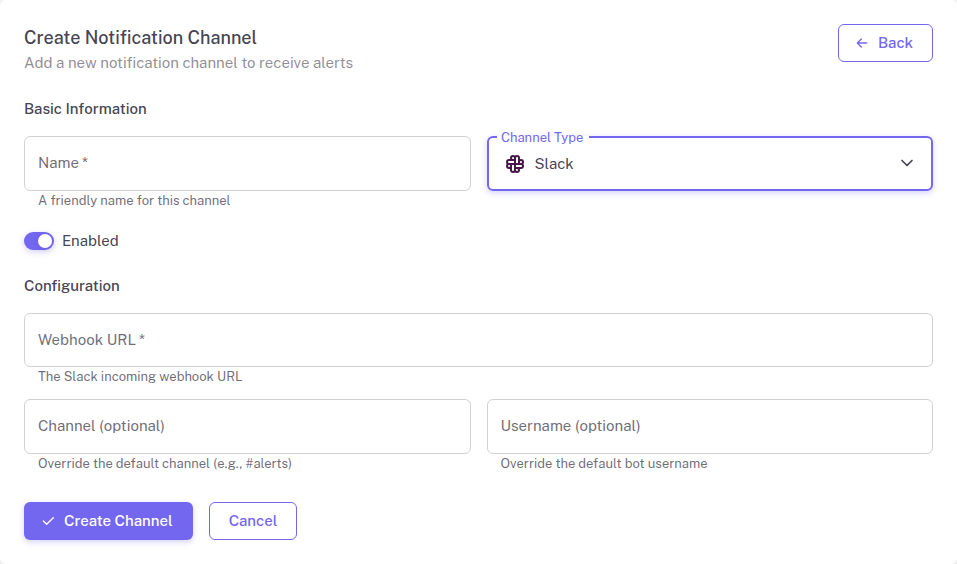
- Enter a descriptive name for this channel (e.g., “Engineering Alerts”)
- Paste the webhook URL you copied from Slack
- Optionally, specify a channel name to override the default
- Optionally, set a custom username for the bot
- Click Save
Step 3: Assign to Monitors
After creating the notification channel, assign it to the monitors you want to receive alerts for:
- Go to Monitors in the sidebar
- Select the monitor you want to configure
- In the monitor settings, find the Notification Channels section
- Enable the Slack channel you just created
- Save your changes
Testing the Integration
To verify your Slack integration is working correctly:
- Return to Notification Channels
- Find your Slack channel in the list
- Click the Test button
- Check your Slack channel for a test notification
If you do not receive the test notification, verify that your webhook URL is correct and that the Slack app has the necessary permissions.
Configuration Options
The Slack integration supports the following configuration options:
| Field | Required | Description |
|---|---|---|
| Webhook URL | Yes | The Slack incoming webhook URL |
| Channel | No | Override the default channel specified in the webhook |
| Username | No | Custom bot username for messages |
Troubleshooting
Notifications not appearing in Slack
- Verify the webhook URL is correct and has not been revoked
- Check that the Slack app is still installed in your workspace
- Ensure the channel specified still exists
Test notification works but alerts do not
- Confirm the notification channel is assigned to your monitors
- Check that the monitor is active and not paused