
StatusDrift integrates with n8n to trigger automation workflows when your services experience issues. This guide explains how to configure the n8n integration to connect monitoring alerts with your self-hosted automation platform.
What This Integration Does
The n8n integration triggers your workflows when:
- A monitored service goes down
- A service recovers after an outage
- Response time exceeds configured thresholds
- SSL certificate issues are detected
With n8n, you can connect StatusDrift to hundreds of applications and build complex automation flows with full control over your data.
Prerequisites
Before configuring the n8n integration, ensure you have:
- An n8n instance (self-hosted or n8n.cloud)
- Access to create and edit workflows
- A StatusDrift account with at least one monitor configured
Step 1: Create a Webhook Workflow in n8n
First, create a workflow in n8n that receives webhook data:
- Log in to your n8n instance
- Click New Workflow
- Add a Webhook node as the trigger
- Configure the webhook with HTTP Method: POST
- Copy the Production URL (or Test URL for testing)
- Add additional nodes to process the alert data
- Save and activate the workflow
Step 2: Add the n8n Channel in StatusDrift
Now configure the integration in your StatusDrift dashboard:
- Log in to app.statusdrift.com
- Navigate to Notification Channels
- Click Add Channel
- Select n8n from the Channel Type dropdown
- Enter a descriptive name like “n8n Automation”
- Paste your n8n webhook URL
- (Optional) In the Auth Header field, enter an authorization value to secure your webhook (e.g.,
Bearer my-secret-token) - Click Create Channel
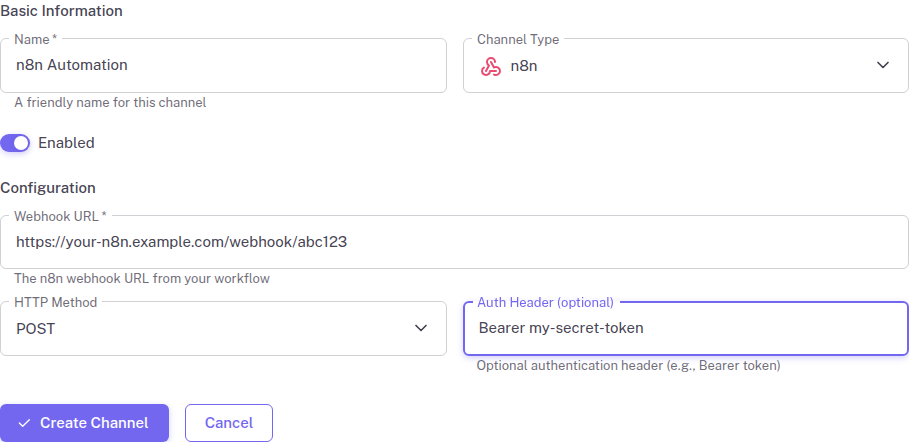
Optional: Securing Your Webhook with an Authorization Header
The Auth Header field allows you to add authentication to your webhook requests. When configured, StatusDrift includes the value you provide as the Authorization header in every request sent to your n8n webhook.
For example, if you enter Bearer my-secret-token, StatusDrift sends the following header with each webhook request:
Authorization: Bearer my-secret-tokenTo validate this header in n8n, configure your Webhook node to use Header Auth authentication with the header name Authorization and the expected value.
Step 3: Assign to Monitors
Connect the notification channel to your monitors:
- Go to Monitors in your dashboard
- Select the monitor you want to connect
- In the Notification Channels section, enable your n8n channel
- Save the monitor configuration
- Repeat for additional monitors as needed
Testing the Integration
Verify your n8n integration is working:
- Go to Notification Channels in StatusDrift
- Find your n8n channel
- Click the Test button
- Check your n8n workflow execution history
Webhook Payload
StatusDrift sends the following data to your n8n webhook:
| Field | Description |
|---|---|
| incident_id | Unique incident identifier |
| incident_name | Name of the incident |
| incident_status | Current incident status |
| incident_url | URL to the incident details |
| monitor_id | Unique monitor identifier |
| monitor_name | Name of the affected monitor |
| monitor_url | URL being monitored |
| monitor_dashboard_url | URL to monitor dashboard |
| priority | Priority level: low, medium, high, critical |
| event | Event type: created, reopened, resolved, escalated, recurring |
| trigger_event_type | Trigger: down, warning, domain_exp, cert_exp (or null) |
| root_cause | Root cause of the incident |
| created_at | When the incident was created (ISO 8601 format) |
| resolved_at | When the incident was resolved (ISO 8601 format) |
| domain_expiration_date | Domain expiration date (ISO 8601 format) |
| certificate_valid_to | SSL certificate expiry date (ISO 8601 format) |
| certificate_issuer | SSL certificate issuer (for cert_exp alerts) |
Example Workflow Ideas
Create incident in your ticketing system
Use the StatusDrift webhook data to automatically create tickets in Jira, GitHub Issues, or Linear.
Update a status page
Automatically update your status page or incident management tool when services go down.
Send custom notifications
Build custom notification logic that routes alerts based on time of day, severity, or affected service.
Troubleshooting
Workflow not triggering
- Verify you are using the Production URL, not the Test URL
- Ensure the workflow is activated
- Check that your n8n instance is accessible from the internet
- Review n8n execution logs for errors
Missing data in workflow
- Check the Webhook node configuration
- Verify the HTTP method is set to POST
- Use the n8n debugger to inspect incoming payloads