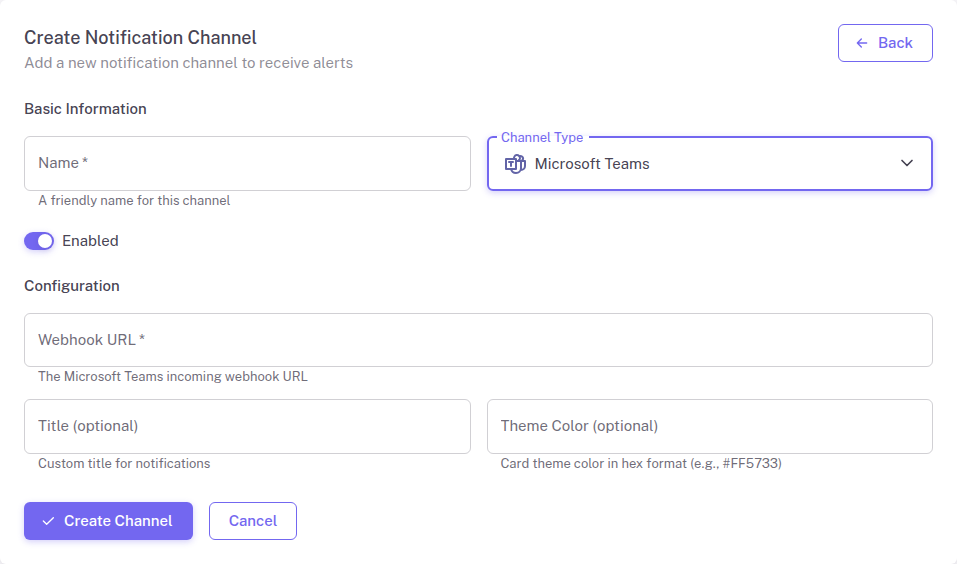
StatusDrift integrates with Microsoft Teams to deliver monitoring alerts directly to your Teams channels. There are two ways to set up this integration: using Workflows (recommended) or using the legacy Connectors method. This guide covers both approaches.
What This Integration Does
The Microsoft Teams integration sends notifications to your Teams channel when:
- A monitored service becomes unavailable
- A service recovers from downtime
- SSL certificate issues are detected
- Performance degrades beyond set thresholds
Prerequisites
Before configuring the Microsoft Teams integration, ensure you have:
- A Microsoft Teams workspace where you have permission to create Workflows or add connectors
- A StatusDrift account with at least one monitor configured
Setting Up with Workflows (Recommended)
Microsoft Workflows is the recommended method for connecting StatusDrift to Teams. It replaces the older Connectors approach and provides a more reliable integration path going forward.
Step 1: Create a Workflow in Microsoft Teams
- Open Microsoft Teams and navigate to the channel where you want to receive alerts
- Click the + (plus) icon at the top of the channel, or right-click the channel name and select Workflows
- Search for the template called Post to a channel when a webhook request is received
- Select the template and review the flow name (you can rename it to something like “StatusDrift Alerts”)
- Confirm the Team and Channel that will receive the notifications
- Click Add workflow
- Once created, copy the webhook URL that is displayed
Step 2: Add the Teams Channel in StatusDrift
- Log in to your StatusDrift account at app.statusdrift.com
- Navigate to Notification Channels in the sidebar
- Click Add Channel
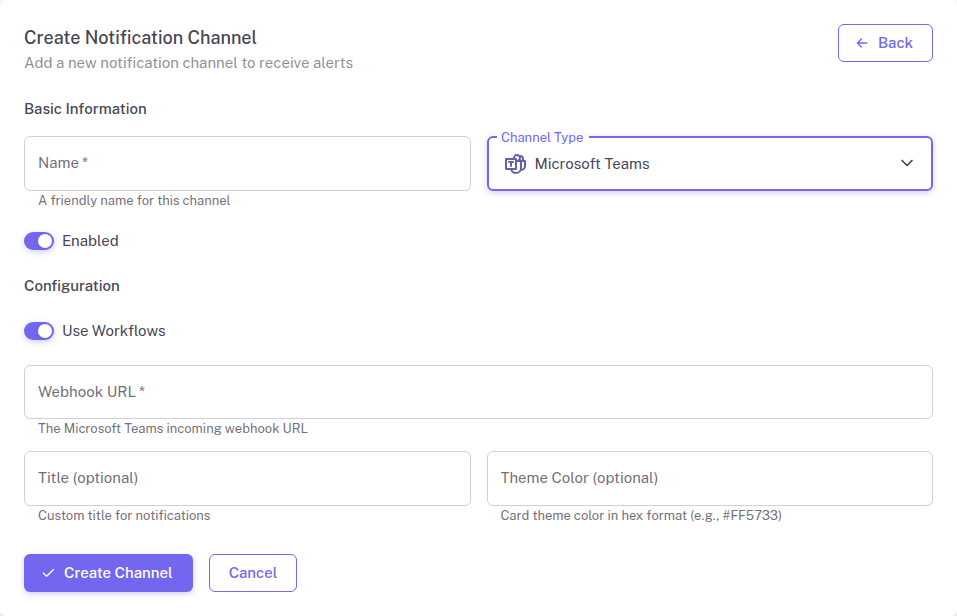
- Select Microsoft Teams from the Channel Type dropdown
- Enter a descriptive name for this channel
- Make sure the Use Workflows toggle is enabled (it is on by default)
- Paste the webhook URL you copied from the Teams Workflow
- Optionally, set a custom title and theme color for notification cards
- Click Create Channel
Assign to Monitors
Connect the notification channel to your monitors:
- Go to Monitors in the sidebar
- Select the monitor you want to receive Teams notifications
- Find the Notification Channels section in monitor settings
- Enable the Microsoft Teams channel you created
- Save your changes
Testing the Integration
Verify your Microsoft Teams integration is working:
- Go to Notification Channels
- Find your Teams channel in the list
- Click the Test button
- Check your Teams channel for the test notification
If the test notification does not appear, verify that the webhook URL is correct and the Workflow is still active in Teams.
Configuration Options
The Microsoft Teams integration supports these configuration options:
| Field | Required | Description |
|---|---|---|
| Use Workflows | No | Toggle to switch between Workflows (recommended) and legacy Connectors mode |
| Webhook URL | Yes | The webhook URL from your Teams Workflow or Connector |
| Title | No | Custom title displayed on notification cards |
| Theme Color | No | Hex color code for the card accent (e.g., #FF0000) |
Troubleshooting
Notifications not appearing in Teams
- Verify the webhook URL is correct and complete
- Check that the Workflow is still active in Teams (navigate to the Workflows app in Teams to verify)
- Ensure the channel has not been deleted or archived
- Confirm that the Use Workflows toggle in StatusDrift matches the type of webhook URL you are using
Theme color not displaying
- Ensure the color is specified as a valid hex code (e.g., #0078D4)
- The # symbol is optional but recommended for clarity
Legacy: Setting Up with Connectors
Note: Microsoft has retired Office 365 Connectors for Teams. The Connectors method described below is provided for reference if you have an existing configuration. For new integrations, use the Workflows method described above.
Step 1: Create a Teams Incoming Webhook
Create an incoming webhook connector in Microsoft Teams:
- Open Microsoft Teams and navigate to the channel where you want alerts
- Click the three dots (…) next to the channel name
- Select Connectors (or Manage channel > Edit > Connectors)
- Search for Incoming Webhook and click Configure
- Enter a name for the webhook (e.g., “StatusDrift Alerts”)
- Optionally, upload a custom icon for the webhook
- Click Create
- Copy the webhook URL that is generated
- Click Done
Step 2: Add the Teams Channel in StatusDrift
- Log in to your StatusDrift account at app.statusdrift.com
- Navigate to Notification Channels in the sidebar
- Click Add Channel
- Select Microsoft Teams from the Channel Type dropdown
- Enter a descriptive name for this channel
- Disable the Use Workflows toggle
- Paste the webhook URL you copied from the Teams connector
- Optionally, set a custom title and theme color for notification cards
- Click Create Channel