
The Audit Log provides a comprehensive record of all significant actions taken within your StatusDrift organization. This feature helps administrators maintain security oversight, troubleshoot issues, and meet compliance requirements by tracking who did what and when.
Accessing the Audit Log
To access your organization’s Audit Log, navigate to Settings and select Audit Logs from the sidebar menu. This feature is available to organization administrators and users with appropriate permissions.
Understanding the Audit Log
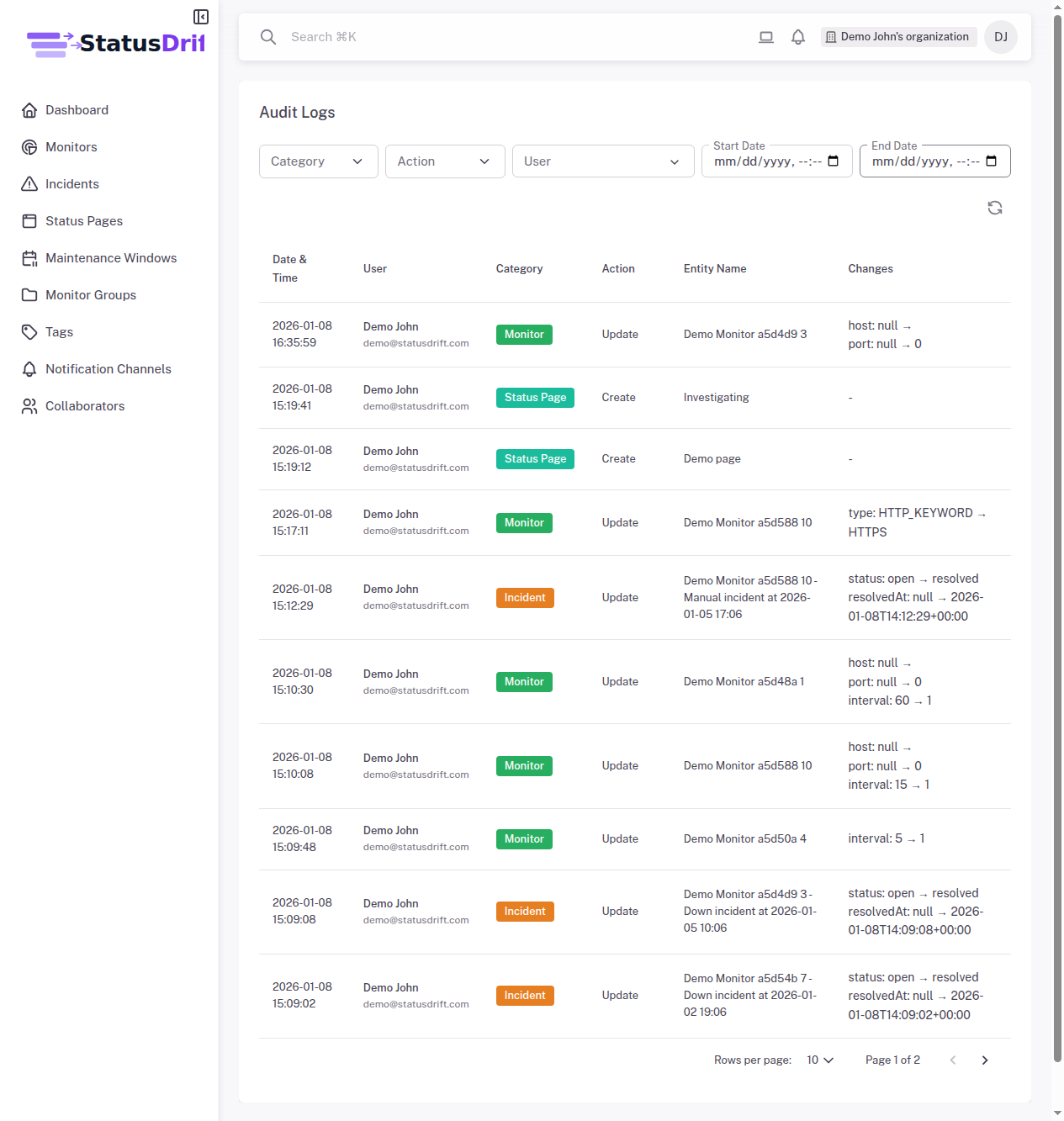
The Audit Log displays events in chronological order with the following information:
- Timestamp: The exact date and time when the action occurred
- User: The team member who performed the action
- Event Type: The category of action taken (e.g., monitor created, user invited, settings changed)
- Description: Details about the specific action and affected resources
- IP Address: The originating IP address for security tracking
Filtering Events
The Audit Log includes powerful filtering options to help you find specific events:
- Date Range: Filter events by a specific time period using the date picker
- Event Type: Filter by category such as authentication events, monitor changes, team management, or billing actions
- User: View actions performed by a specific team member
Common Event Types
The Audit Log tracks various types of organizational activities:
- Authentication: User logins, logouts, failed login attempts, and 2FA changes
- Monitor Management: Monitors created, modified, paused, or deleted
- Team Management: Users invited, role changes, and account removals
- Organization Settings: Changes to organization name, billing, or security settings
- Integrations: Notification channels added, modified, or removed
- Status Pages: Status page creation, updates, and incident management
Exporting Audit Data
For compliance and record-keeping purposes, you can export your Audit Log data. Use the export function to download logs in CSV format for the selected date range. Exported data includes all event details and can be imported into spreadsheet applications or compliance management tools.
Retention Period
StatusDrift retains Audit Log data according to your subscription plan. Enterprise plans include extended retention periods to meet regulatory compliance requirements. Contact support if you need access to historical audit data beyond your standard retention period.
Best Practices
- Regularly review the Audit Log to identify unusual activity patterns
- Export logs periodically for long-term compliance archiving
- Investigate any unexpected authentication events promptly
- Use the Audit Log in conjunction with the Security Log for comprehensive security monitoring